View Gantt chart to monitor project timeline
In CTMS, you can view the Gantt chart to track and manage the timeline of key milestones and activities within a study. The chart provides a visual representation of milestone progress, helping project managers, researchers, and stakeholders monitor deadlines, identify delays, and ensure smooth study execution.
Important
Note that until you add milestones and activities, no data is displayed in the Gantt chart.
-
Access the study management page in one of the following ways:
-
In the CTMS application header, select the DASHBOARD tab and then select the study dashboard of your interest.
 Figure 1. Accessing study management from dashboard
-
In the CTMS application header, select the STUDY MANAGEMENT tab. Then from the Study Data List table, select the study name of your interest.
 Figure 2. Accessing study management from study data list
-
-
On the study page that opens, in the left pane, select Project Management > Gantt.
-
In the Gantt chart that appears, from the workspace toolbar, select the dropdown menu and choose one of the following options:
-
Milestones Only: view only the key project milestones, such as study start, first subject enrolled, site close, and other critical checkpoints. This option helps track major project progress without additional details.
-
Activities Only: view only the individual tasks and activities that contribute to the project's execution. This view is useful for monitoring ongoing tasks and ensuring timely completion of study-related activities.
-
Milestones and Activities: view a combined chart of both milestones and activities, in which you can see how tasks align with key project checkpoints. This view provides a more detailed understanding of project dependencies and workflow.
-
Milestones, Activities and Categories: view milestones, activities, and their associated categories, offering the most comprehensive view. This option helps users analyze project phases, task grouping, and overall study progress at a granular level.
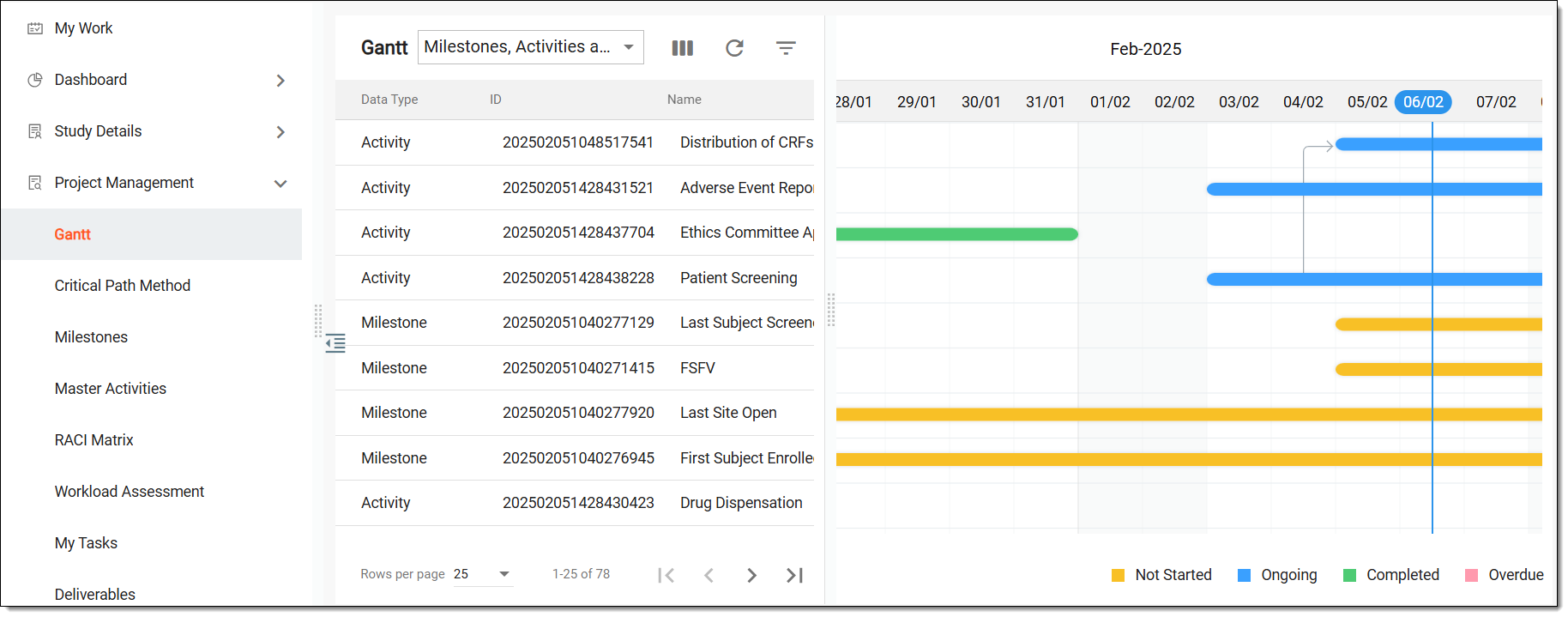 Figure 3. Viewing Gantt chart
Tip
Bars in different colors indicate the current status of the milestone or activity:
-
 : indicates the milestone or activity is yet to start.
 -
 : indicates the milestone or activity is in progress.
 -
 : indicates the milestone or activity has been completed.
 -
 : indicates the milestone or activity has not started and is past its planned due date.
-
Once selected, view the Gantt chart and monitor the project's timeline.