Analyze risk measurement chart data
The risk measurement chart displays a graphical representation of potential risks associated with data coding, highlighting areas where coding practices may lead to inaccuracies or misinterpretations. This chart can only depict the comparison between two groups.
In EDC, the Risk Measurement chart is represented with a scatter plot. The scatter plot is a graphical representation of data cartesian coordinates to displays values for typically two variables for a set of data. In the Risk Measurement chart, the x-axis of the scatter plot typically represents different demographic groups, specific coded categories, or drug terms, whereas y-axis displays a risk score or percentage, which quantifies the level of concern related to coding accuracy or discrepancies for each group or term.
-
In the EDC application header, select the DASHBOARD tab.
-
On the page that opens, select the Coding Analytics tab.
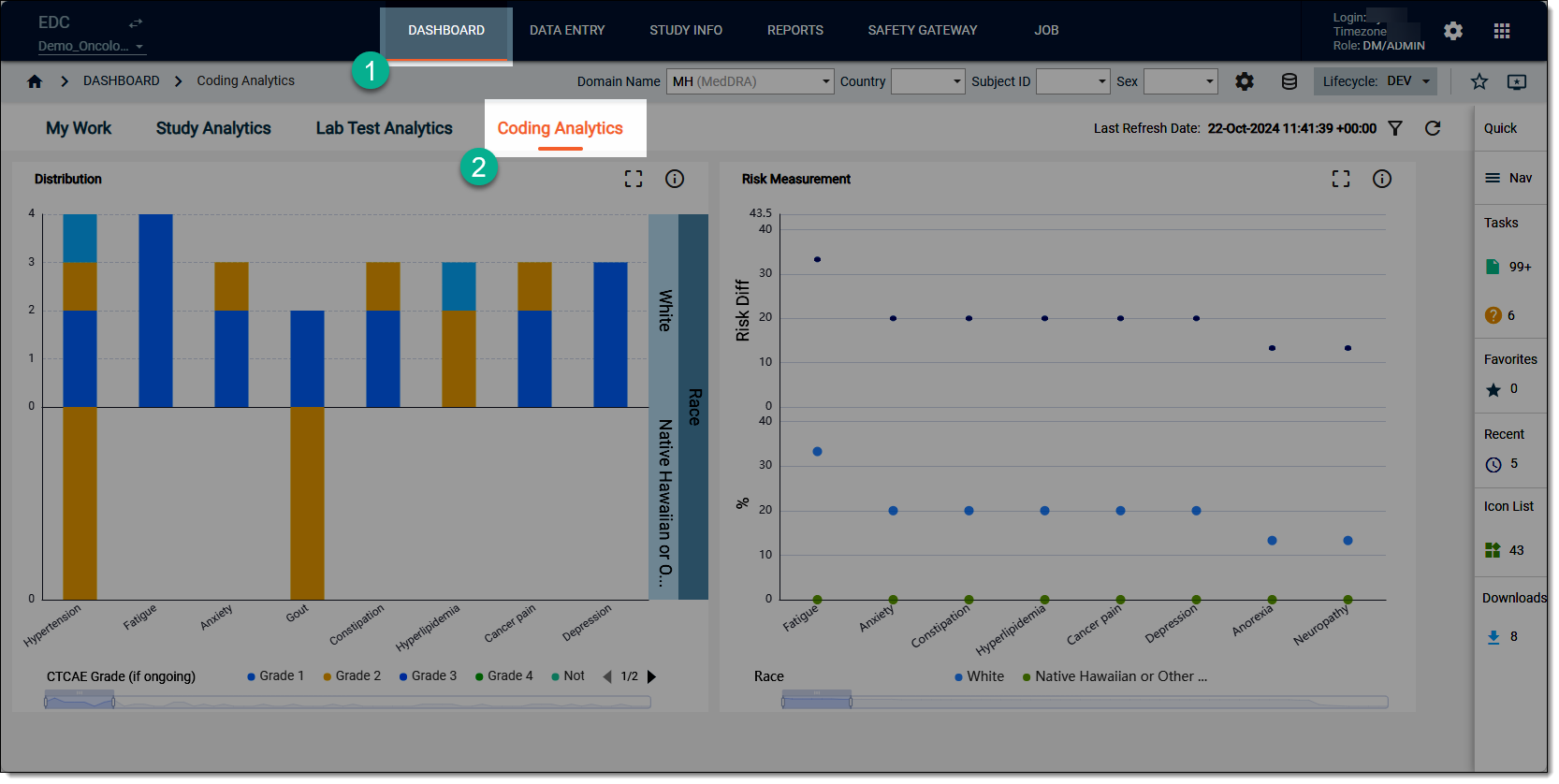 Figure 1. Accessing coding analytics dashboard
-
On the workspace toolbar, from the Domain Name dropdown menu, select the domain category that you want to review.
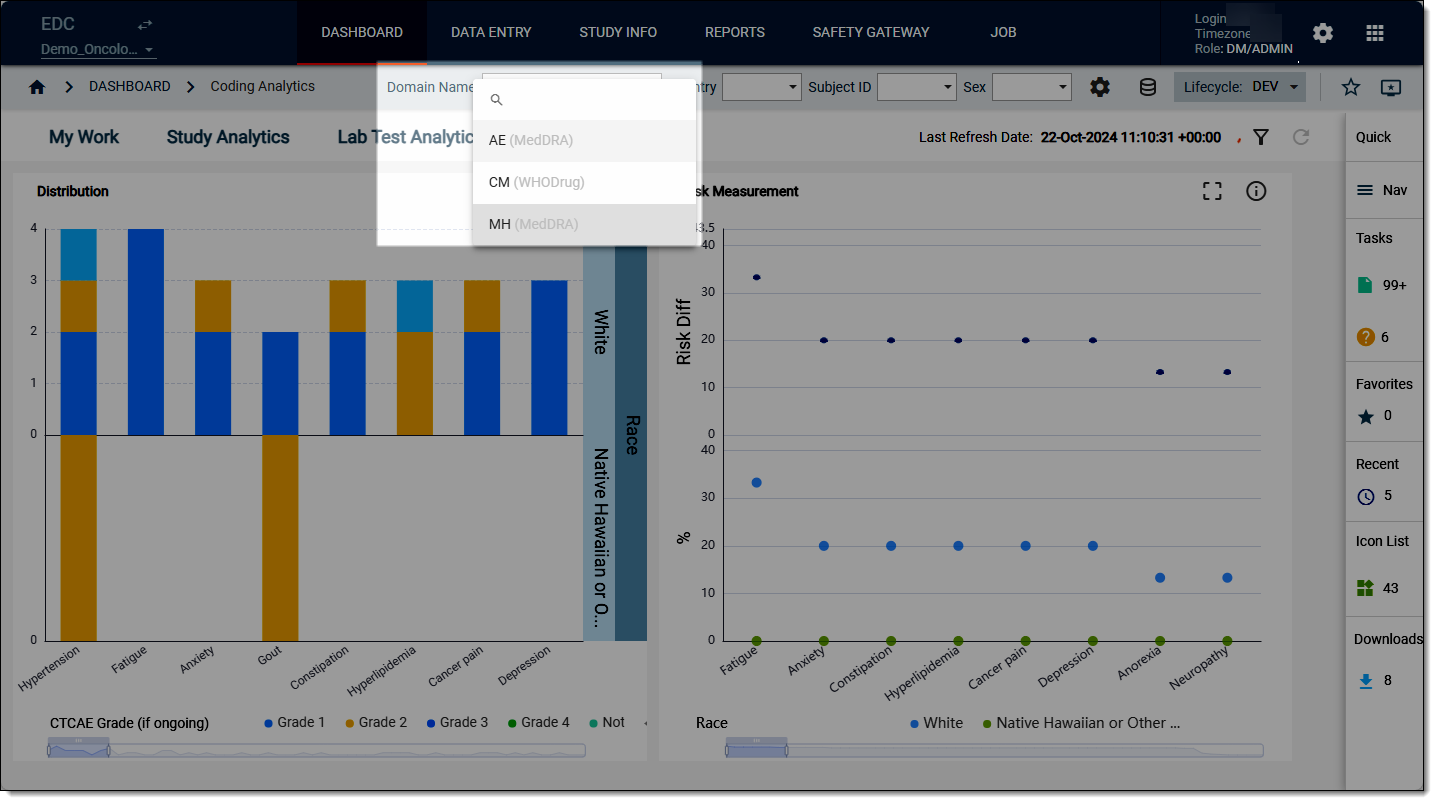 Figure 2. Selecting domain to review
-
On the Coding Analytics dashboard that opens, start analyzing the Risk Measurement chart data. For this, hover over the bars to view the tooltips and compare different values for various categories of data where relevant.
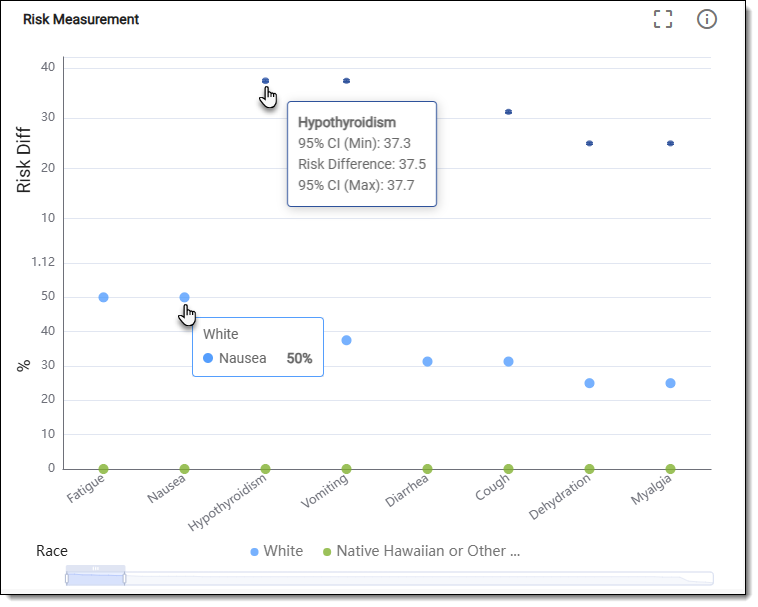 Figure 3. Reviewing risk measurement chart data
-
Now from the chart, select Detail
 . In the table that opens, analyze the distribution details as needed.
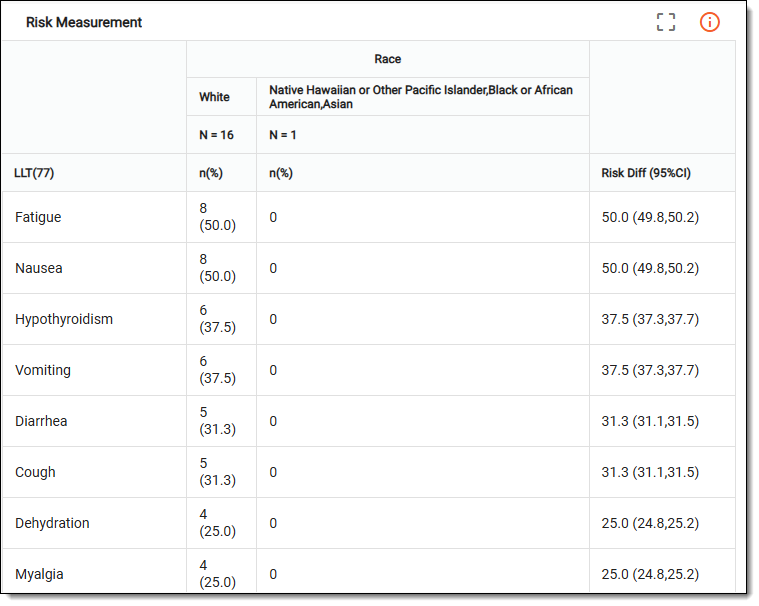 Figure 4. Reviewing risk measurement chart details
Tip
To enlarge the table view, from the chart, switch to the Full Screen
 mode.
mode.
Once you have analyzed the details of the Risk Measurement chart, select  to close the table and return to the
chart view.
to close the table and return to the
chart view.