Analyze distribution chart data
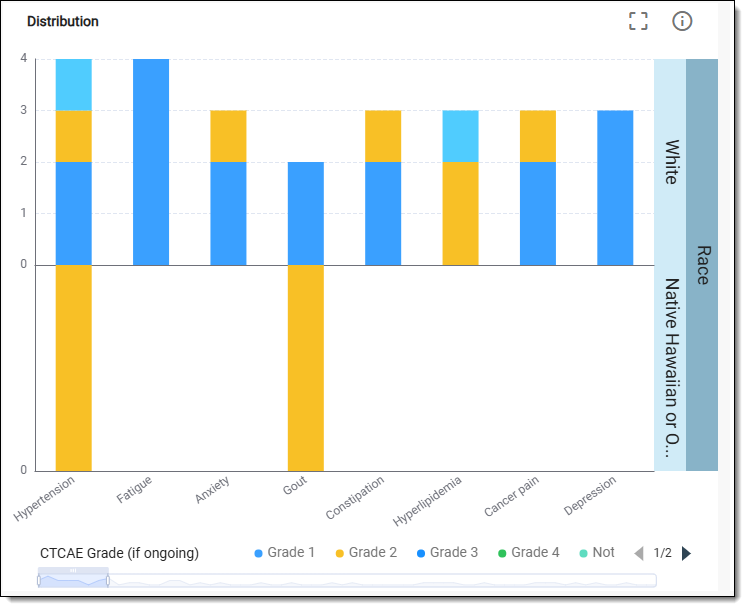
The distribution chart visualizes the frequency of coded values across different categories or variables. It provides a clear representation of coding practices and helps identify trends, potential issues, and the overall performance of coding efforts.
In EDC, the Distribution chart is represented with a bar chart. The bar chart is a graphical representation of data using rectangular bars to show the magnitude of different categories or groups. In the Distribution chart, the x-axis of the bar chart typically represents specific codes, terms, or categories that are being analyzed. This might include MedDRA terms, WHODrug terms, or other predefined coding categories, whereas y-axis represents the frequency count or the number of instances for each term or category.
-
In the EDC application header, select the DASHBOARD tab.
-
On the page that opens, select the Coding Analytics tab.
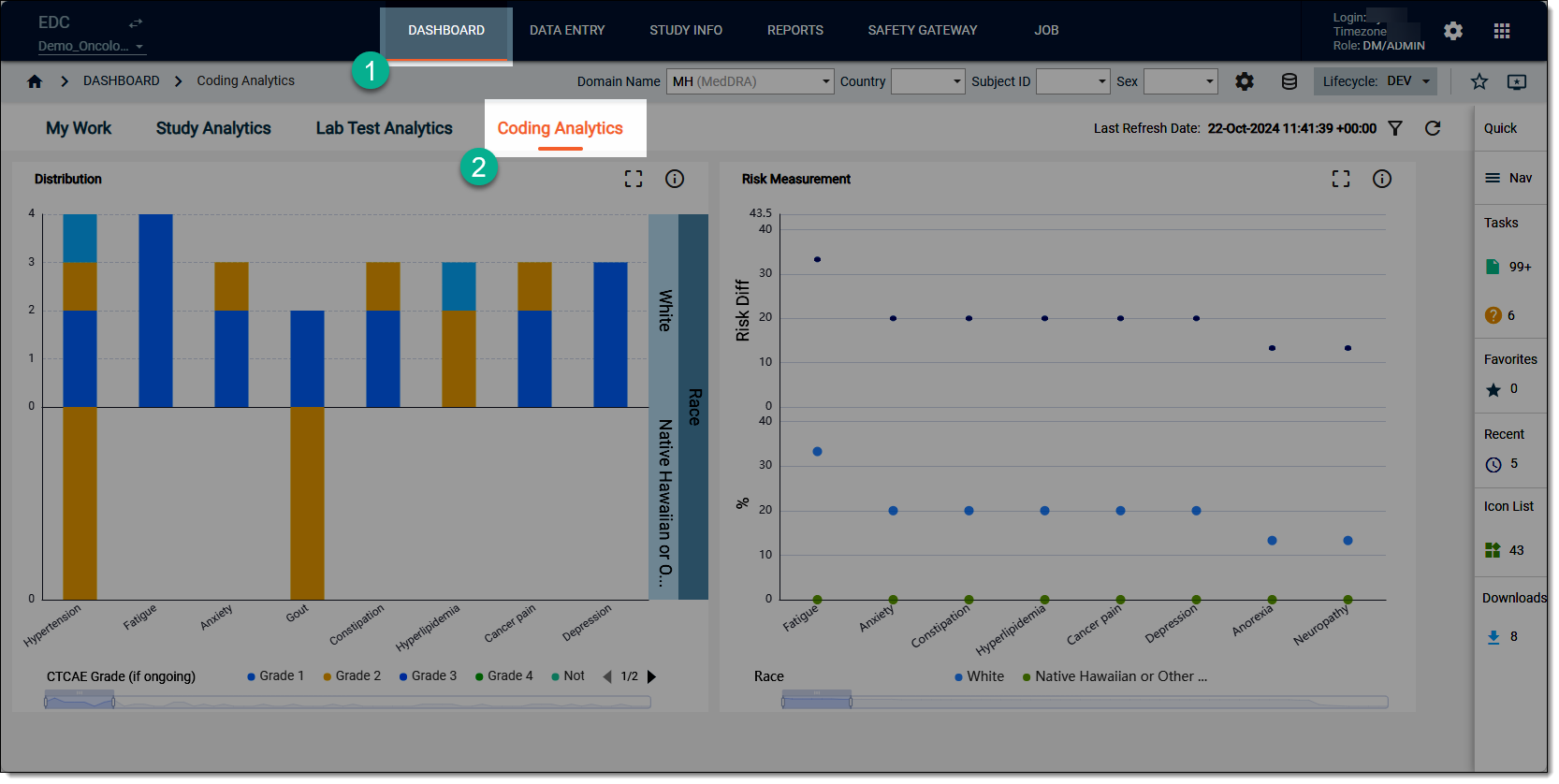 Figure 2. Accessing coding analytics dashboard
-
On the workspace toolbar, from the Domain Name dropdown menu, select the domain category that you want to review.
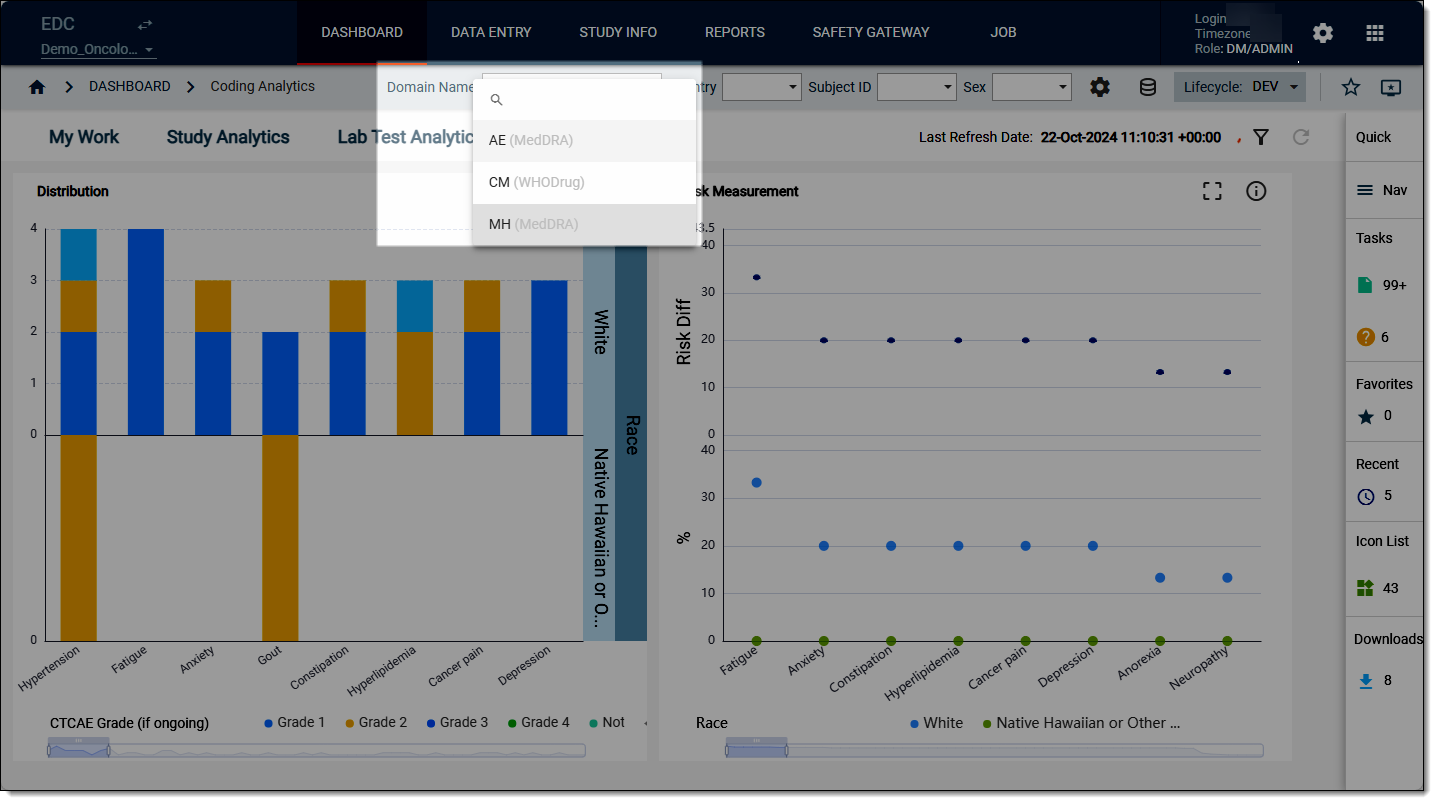 Figure 3. Selecting domain to review
-
On the Coding Analytics dashboard that opens, start analyzing the Distribution chart data. For this, hover over the bars to view the tooltips and compare different values for various categories of data where relevant.
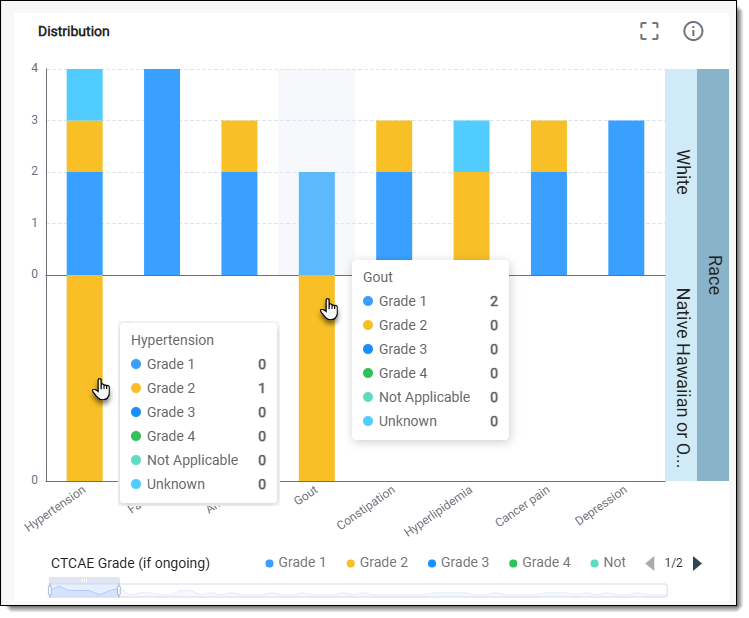 Figure 4. Reviewing distribution chart data
-
Now from the chart, select Detail
 . In the table that opens, analyze the distribution details as needed.
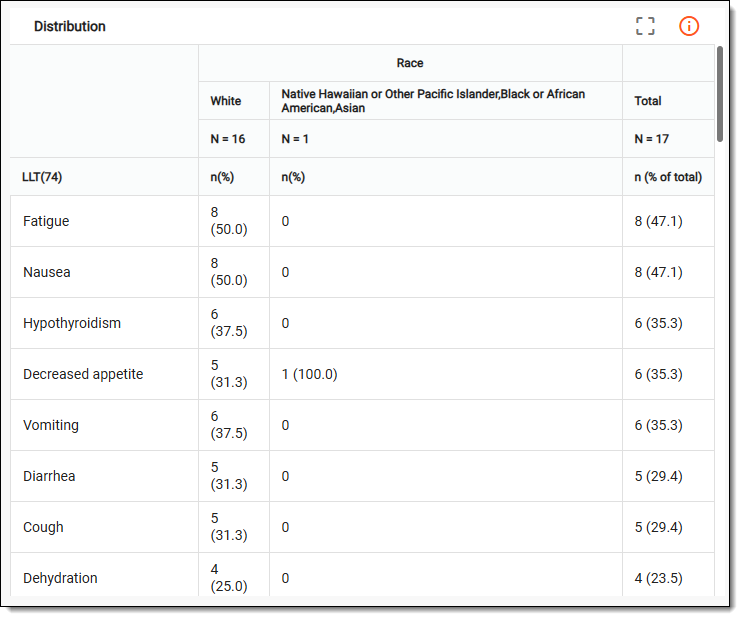 Figure 5. Reviewing distribution chart details
Tip
To enlarge the table view, from the chart, switch to the Full Screen
 mode.
mode.
Once you have analyzed the details of the Distribution chart, select  to close the table and return to the chart
view.
to close the table and return to the chart
view.