Filter coding analytics dashboard data
EDC's Coding Analytics dashboard offers an advanced filtering capability that helps you customize the data displayed in the dashboard according to your specific parameters. This ensures that you can focus on relevant information pertinent to your analysis.
In EDC, the General Setting option is a core feature that resides on the Coding Analytics dashboard toolbar. Using this feature, you can filter data by various criteria, such as countries, ages, Medical Dictionary for Regulatory Activities (MedDRA) term levels, groups, and so on. Additionally, the functionality offers multiselect options to choose various criteria simultaneously. This eventually enhances granularity and aids in identifying trends or specific issues.
-
In the EDC application header, select the DASHBOARD tab.
-
On the page that opens, go to the Coding Analytics tab and from the workspace toolbar, select General Setting
 .
.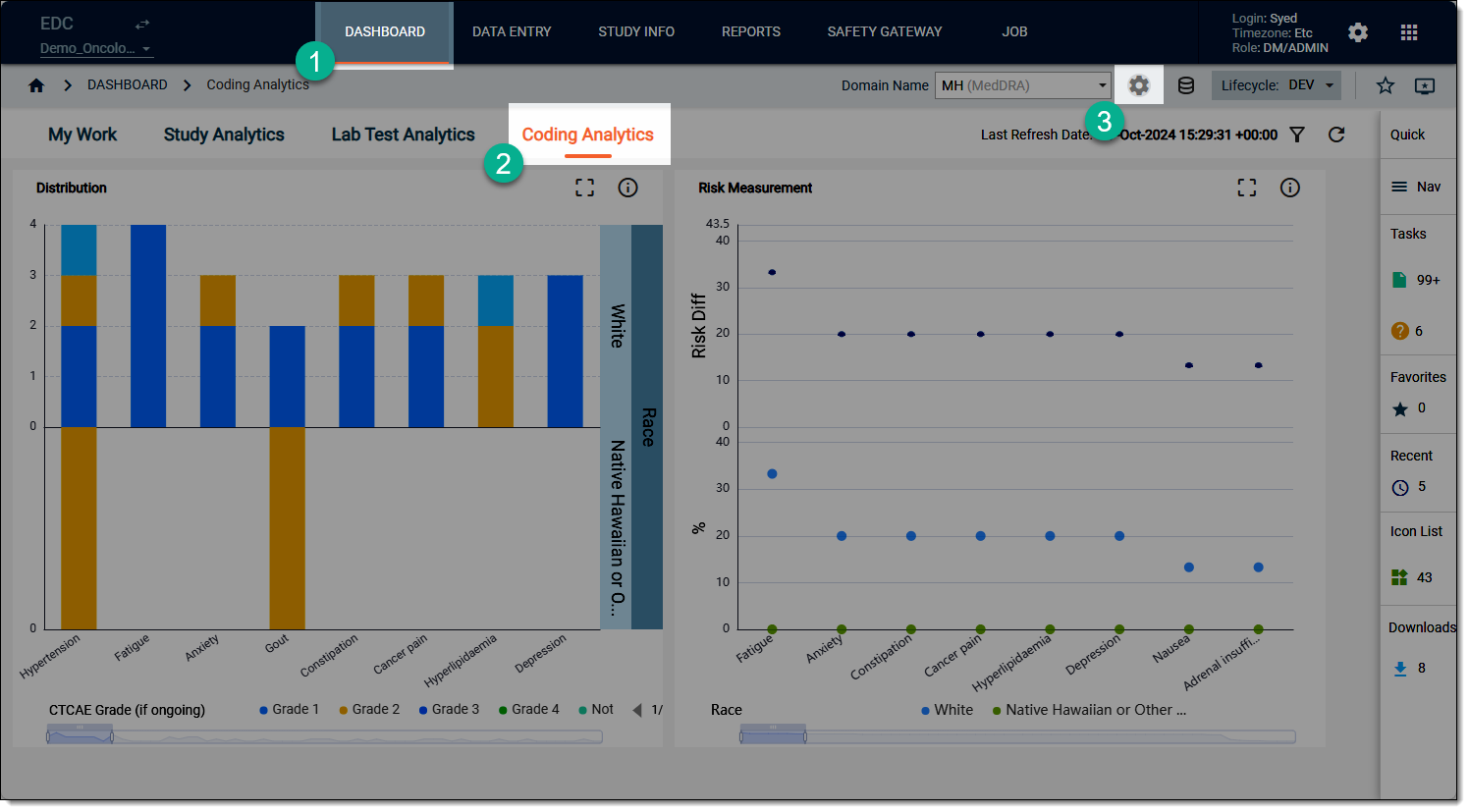 Figure 1. Accessing general settings
-
On the General Setting dialog that opens, filter the data as explained in the following table.
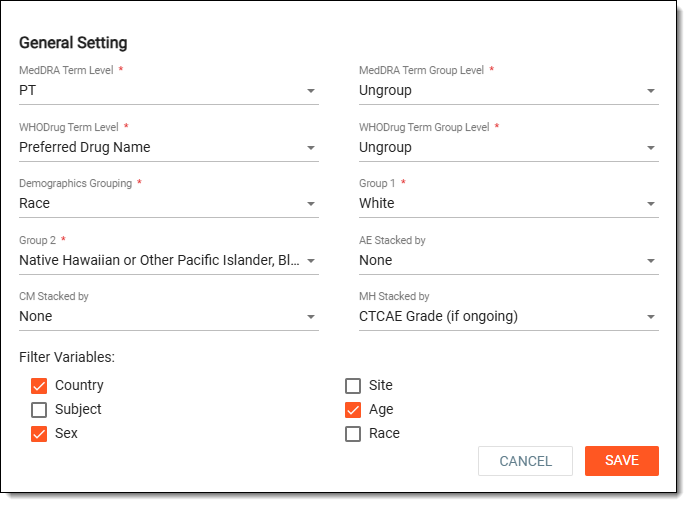 Figure 2. Filtering coding analytics data
Element
Details
MedDRA Term Level*
From the dropdown menu, select the needed value to filter the coding analytics dashboard data based on specific terms from MedDRA.
For example, selecting LLT (Lowest Level Term) value filters the dashboard data based on the symptoms or conditions classified at this level, such as nausea.
MedDRA Term Group Level*
From the dropdown menu, select the needed value, to filter the coding analytics dashboard data based on the broader categories of the MedDRA terms.
For example, choosing By PT (Preferred Term) value filters the dashboard data by grouping one or more LLTs into a broader category. For instance, the PT for the LLT nausea might be simply nausea, but it can encompass other related LLTs like nausea and vomiting.
WHODrug Term Level*
From the dropdown menu, select the needed value to filter the coding analytics dashboard data based on the specific drug names.
For example, selecting the Preferred Drug Name value filters the dashboard data based on a particular medication name, such as Aspirin.
WHODrug Term Group Level*
From the dropdown menu, select the needed value to filter the coding analytics dashboard data based on the broad drug group classification that contains multiple drugs.
For example, by selecting the Preferred Drug Name value, you filter the dashboard data based on the group classification of a particular drug name, such as non-steroidal anti-inflammatory drugs.
Demographics Grouping*
From the dropdown menu, select the needed value to filter the coding analytics dashboard data based on the demographic factors, which include age, sex, or race.
For example, filtering to view data exclusively for female participants.
Group 1*
From the dropdown menu, select the needed value to filter the coding analytics dashboard data based on a specific grouping.
For example, filtering for participants belonging to different races, such as Asian, White, Native Hawaiian, and so on.
Group 2*
From the dropdown menu, select the needed value to filter the coding analytics dashboard data based on a specific grouping.
For example, filtering for participants belonging to different races, such as Asian, White, Native Hawaiian, and so on.
[Domain name] Stacked by
From the dropdown menu, select the needed value to filter the coding analytics dashboard data based on the data elements for a selected variable.
There can be as many such filtering options as there are domains set for coding via Study Designer.Filter Variables
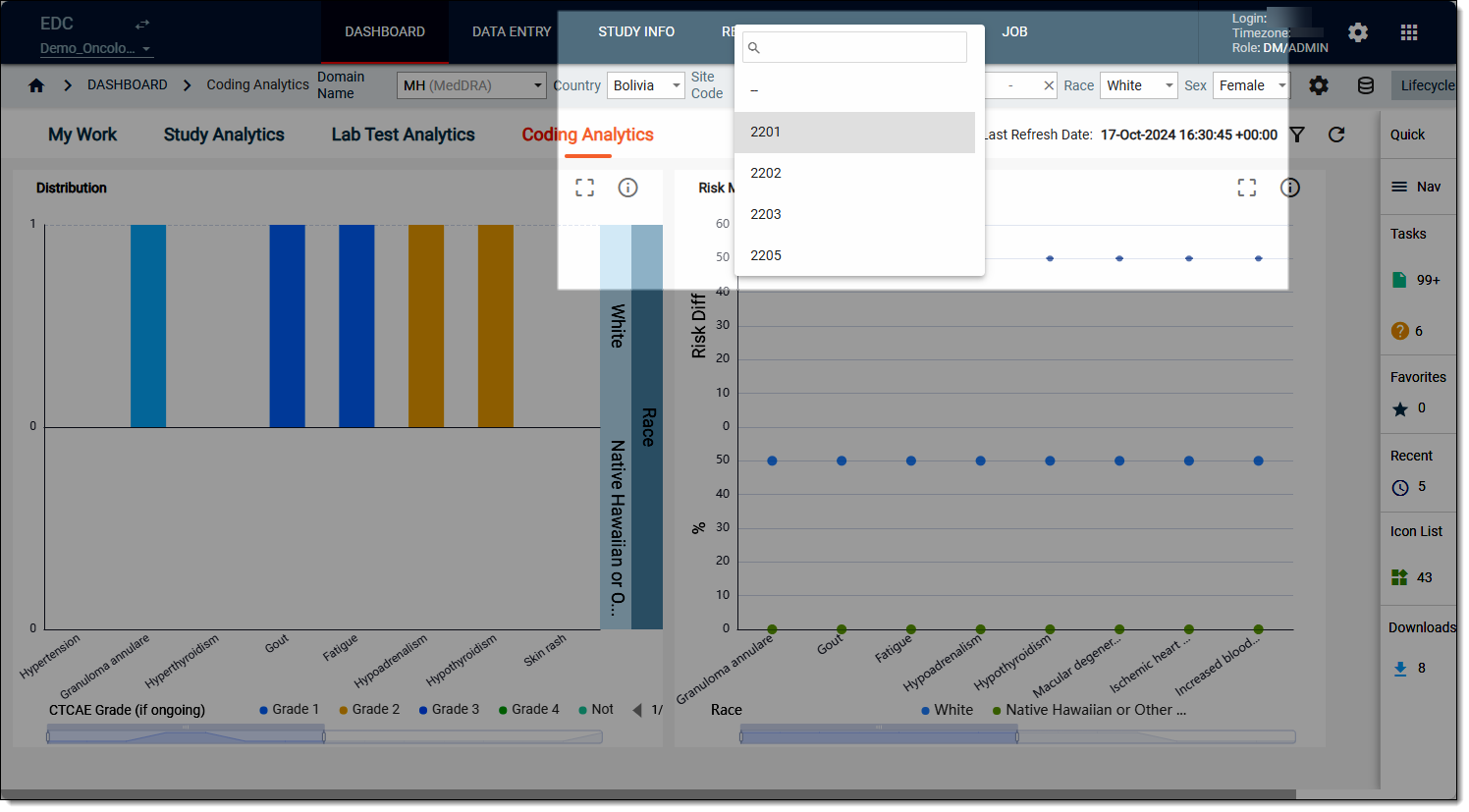
Select any of the following variables to display a separate filter dropdown on the Coding Analytics workspace toolbar.
 Figure 3. Toolbar filter variables
Country
Select this checkbox to filter the lab test results by choosing a country.
Subject
Select this checkbox to filter the lab test results by choosing a subject ID.
Sex
Select this checkbox to filter the lab test results by choosing a sex.
The default values for this variable are Male and Female.
Site
Select this checkbox to filter the lab test results by choosing a site code.
Age
Select this checkbox to filter the lab test results by choosing an age range.
Race
Select this checkbox to filter the lab test results by choosing a race.
SAVE
Select
 to update your filter preferences. Based on the set filters, the system accommodates the results on each chart accordingly.
CANCEL
Select
 to close the dialog without saving your filters.
 -
After saving, you are redirected back to the Coding Analytics dashboard that displays the chart data based on your applied filters. Now, on the workspace toolbar, from each variable dropdown list that you have selected in the Filter variables block, choose the desired value that you want to filter in your test results charts.
Once done, the results are displayed as per your applied filters. You can now review the chart data and make your decisions accordingly.