Move items between packaging lots
When managing your study logistics in IWRS, you can move items from one packaging lot to another. This feature might become handy in relabelling an item or a group of items.
-
In the IWRS application header, select the TREATMENT DESIGN tab.
-
In the left pane, select the Lot subtab.
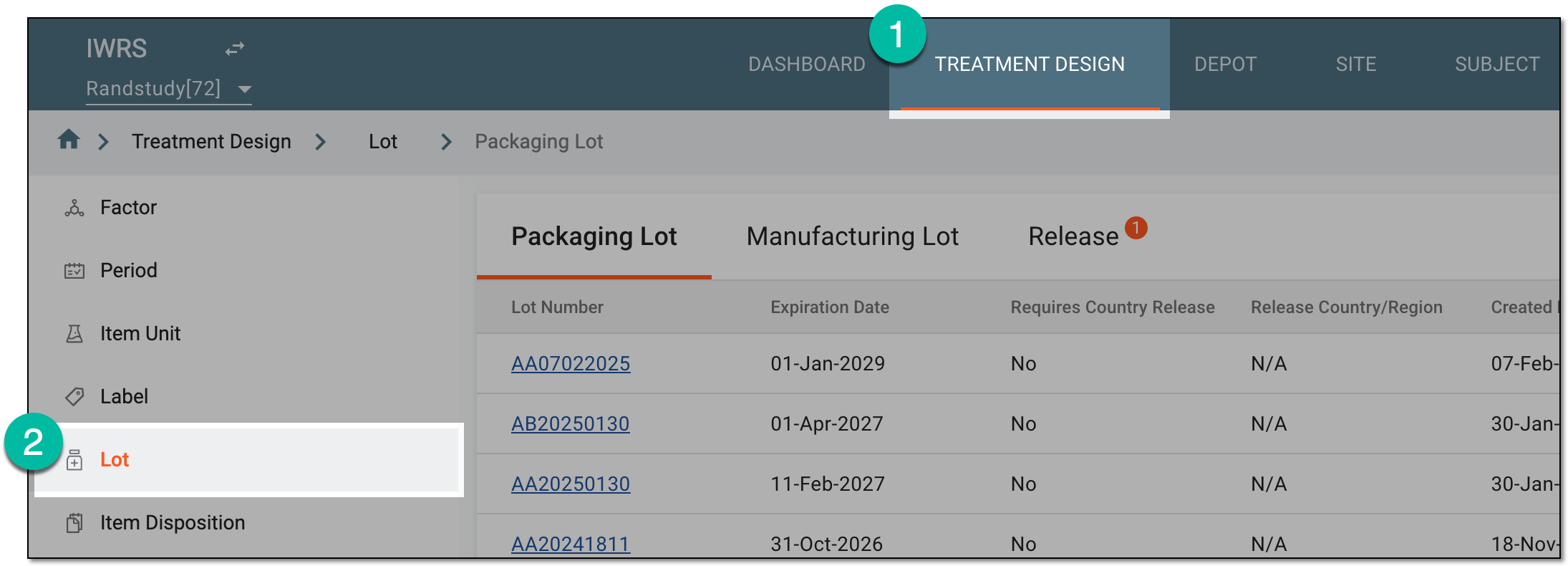 Figure 1. Accessing lot subtab
-
In the Packaging Lot table that appears, go to the lot whose items you want to move to a different lot. Then from the Action(s) column, select More
 > Move Items
  .
.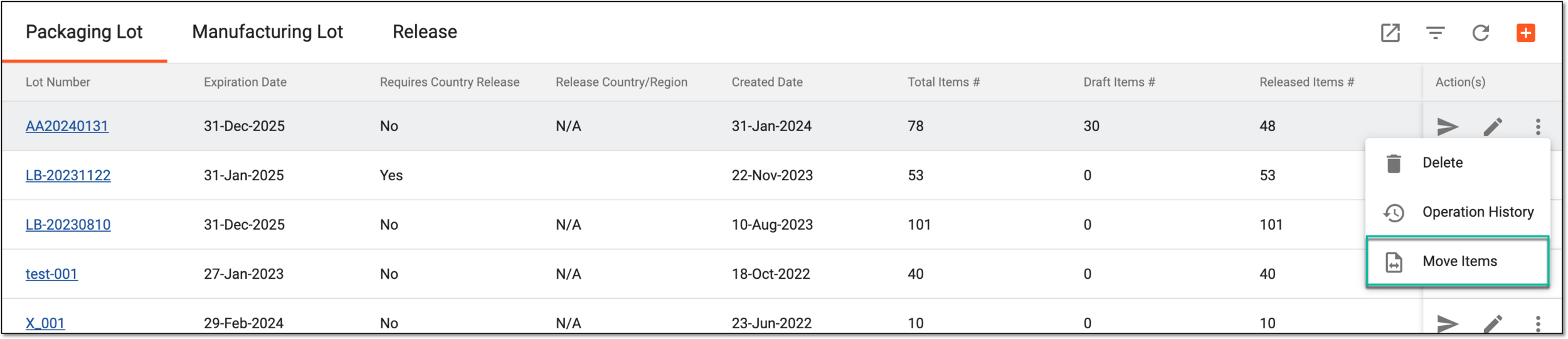 Figure 2. Moving items between lots
-
On the page that appears, select the items and destination lot as explained in the following table.
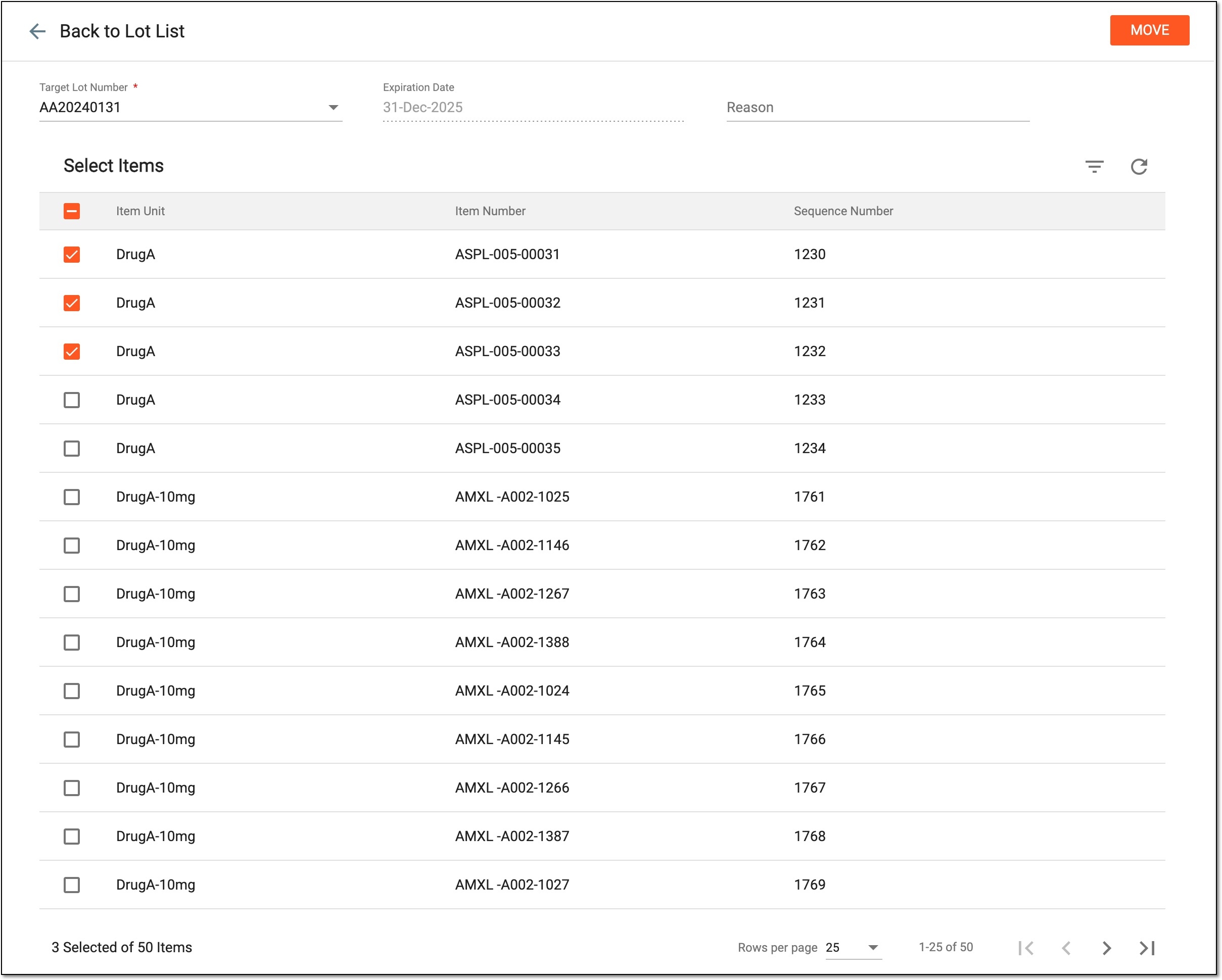 Figure 3. Selecting items to move and target lot
Element
Details
Target Lot Number*
Select the packaging lot to which you want to move the selected items.
Expiration Date
The field is autopopulated with the default expiration date of the chosen target lot. The selection cannot be manually changed. All items that you move to the target lot are to obtain this expiration date.
Reason
Enter the reason for moving the items between lots.
Select Items
From the table, select the checkboxes next to the items that you want to move to the target packaging lot.
MOVE
Select
 to relocate your selected items to the chosen target lot.
Upon completion, the items are moved to the target packaging lot. All the moved items obtain the default expiration date of the target lot.