Export visit window to XLSX in subject management
In a clinical trial, a visit window defines the allowable time span for a subject visit in case it is impossible to conduct that visit on the exact scheduled visit date.
Tip
Data managers (DM) define visit windows and their anchors in the Study Designer (SD) app. Then these settings are automatically populated in the EDC application in the corresponding visit.
Once the window settings are populated from SD, in EDC, from the STUDY INFO tab, the study designers and protocol managers can use the data for administrative purposes to plan and set up the clinical trial. It reminds the subject about the next visit occurrence in advance. Also, the experts may need to check the visit windows for mistakes and whether the visit windows are in the permitted window ranges.
In this section, you can learn how to export all the visit window details, or based on the filters applied in a particular clinical trial.
-
In the EDC application header, select the STUDY INFO tab.
-
On the page that opens, in the left pane, expand the Subject option.
-
In the menu that appears, select the Subject Information subtab.
-
In the open subject list, select Switch to Visit Window
 .
.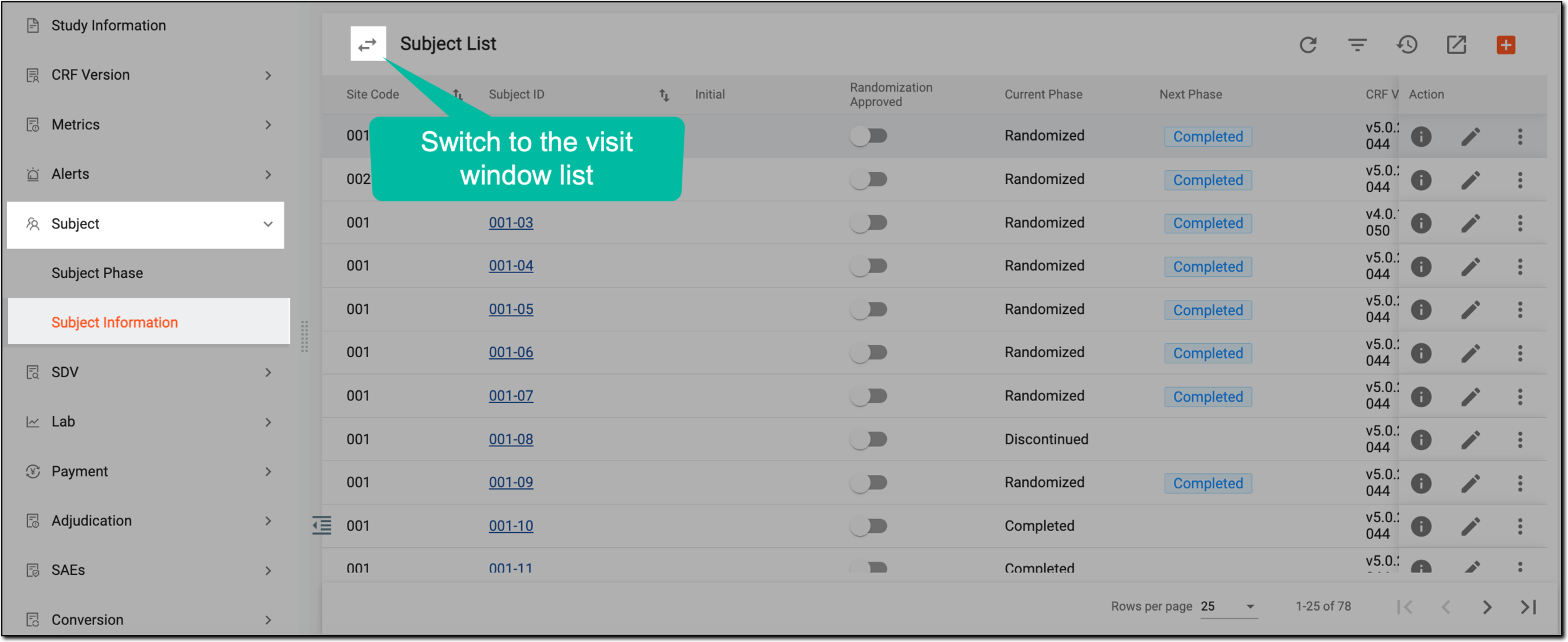 Figure 1. Switching to visit window page
-
On the Visit Window List page, apply the needed filter to narrow down the list of visit windows.
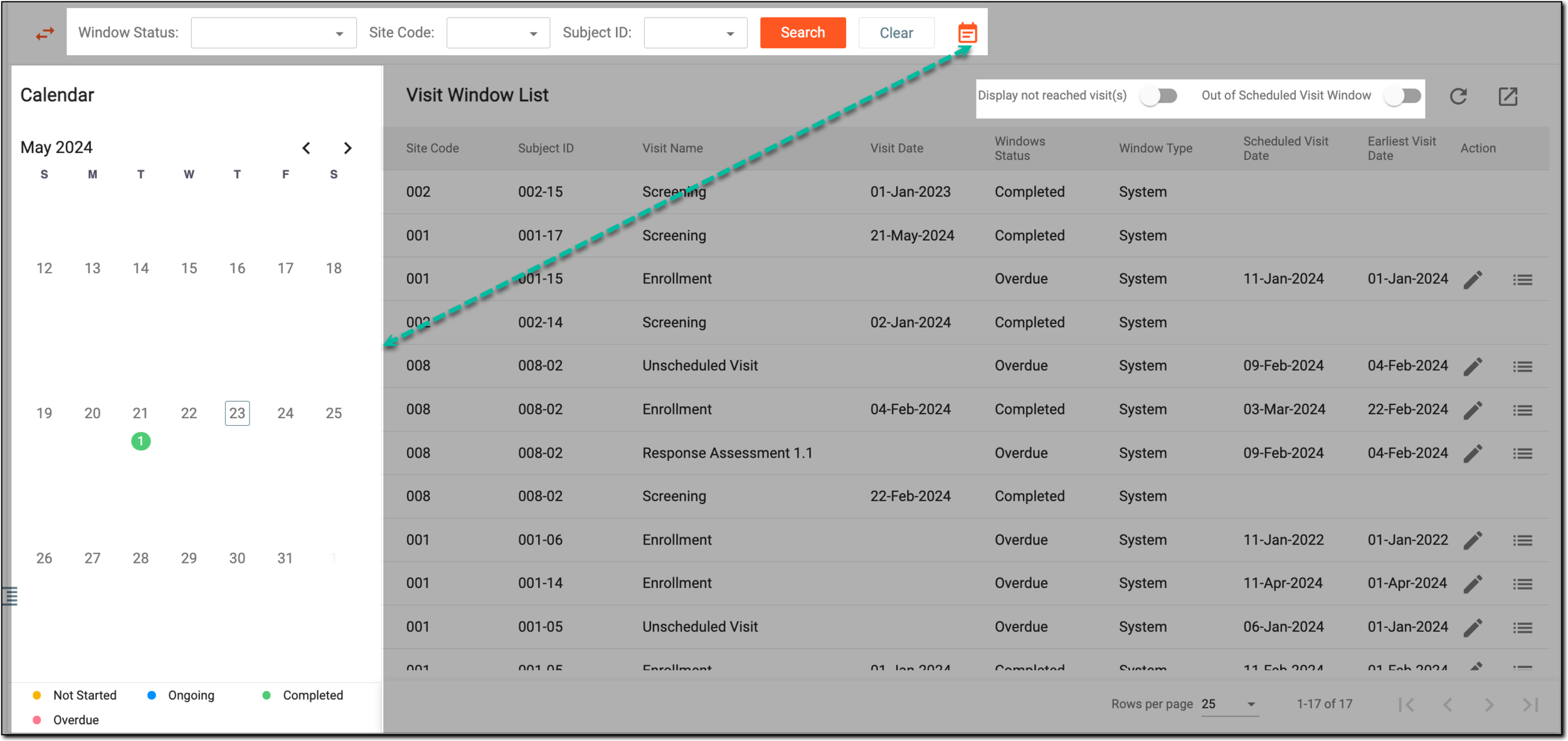 Figure 2. Filtering visit window list
-
Now that the table contains the filtered list of visit windows you need, in the workspace toolbar, select Export
 .
.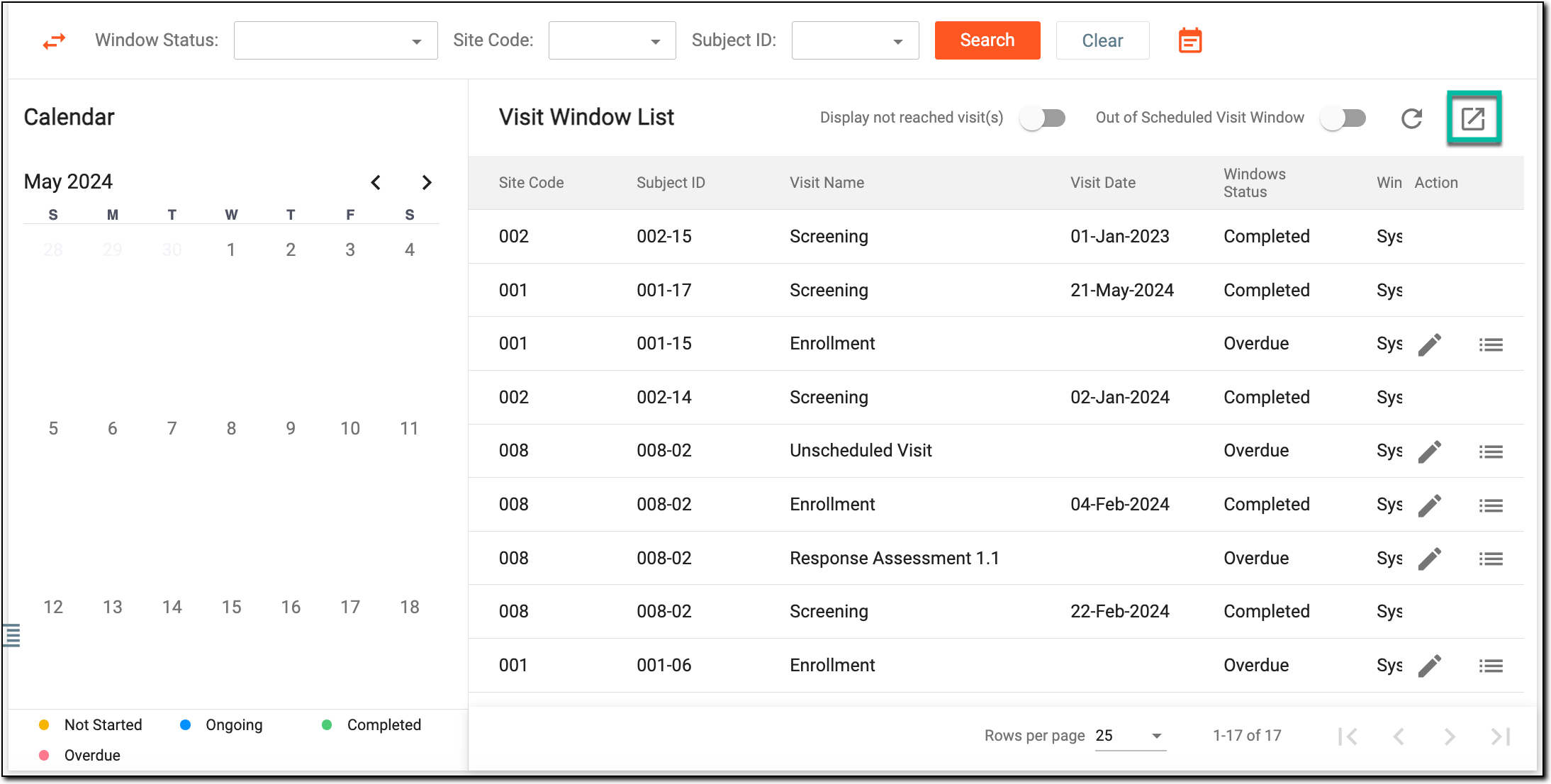 Figure 3. Exporting visit window list
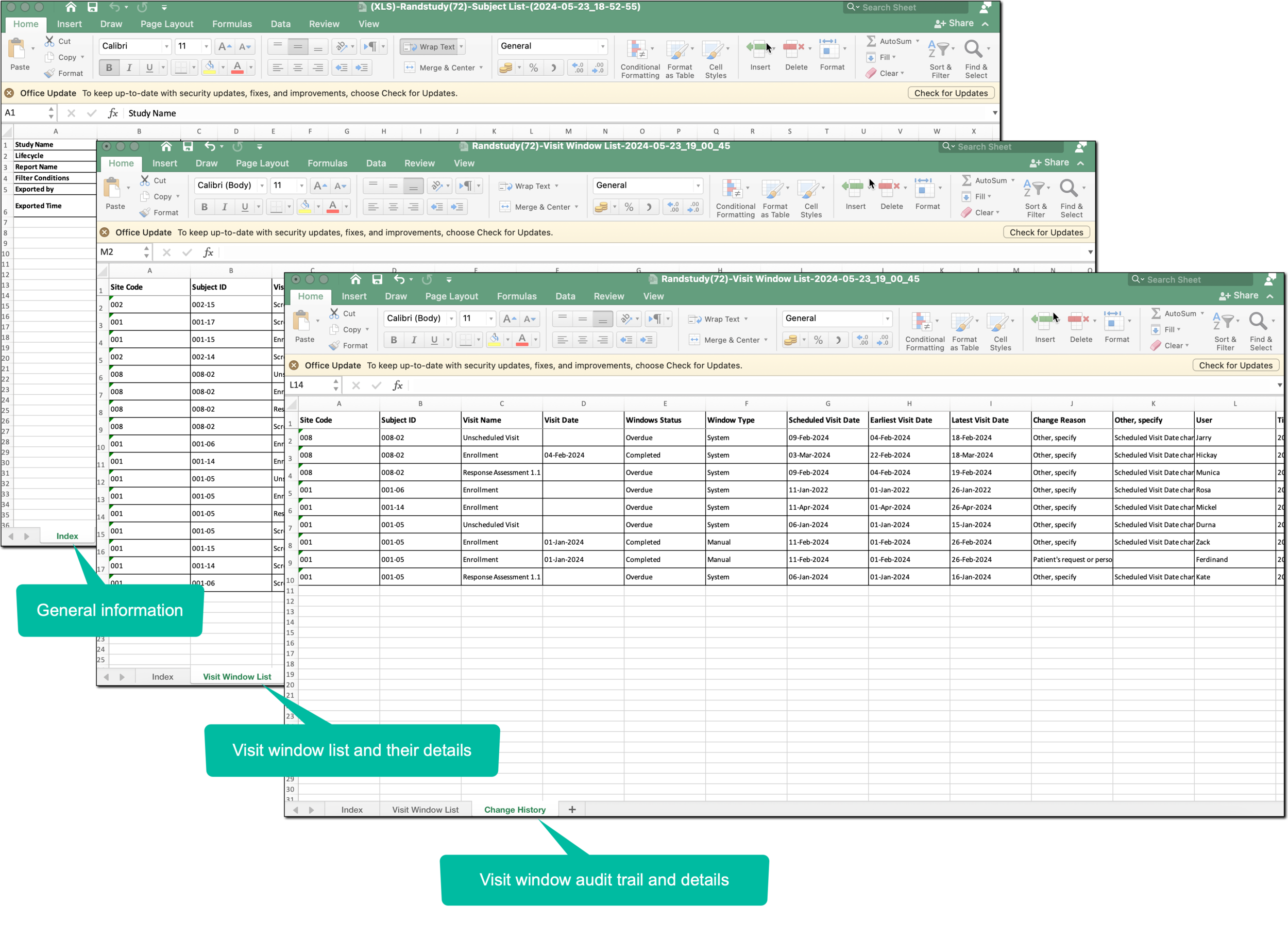
Once selected, an XLSX sheet is saved on your computer. Follow the prompts on your PC to access the file and continue working with the visit window list offline.
The file comprises general information (the study name, objects exported, filters applied, and so on), the list of visit windows with their details, and the audit trail of those visit windows.