Export SDV workload
Source Data Verification (SDV) involves the review and comparison of data recorded in the source documents such as laboratory results, medical history, adverse event records, and so on against the data captured on the case report forms (CRFs). During SDV, a trained monitor or clinical research associate (CRA) compares the source data to the CRFs to identify any discrepancies or errors.
After defining the SDV workload needed to verify each CRF against the source documentation, the entire SDV workload report can be downloaded to your computer in an XLSX file. You can then work with this report offline or provide it to the sponsor for detailed analysis.
-
In the EDC application header, select the STUDY INFO tab.
-
In the left pane of the page that opens, expand SDV & SDR and select the SDV Workload tab.
-
From the workspace toolbar of the SDV Workload page that opens, select Export
 .
.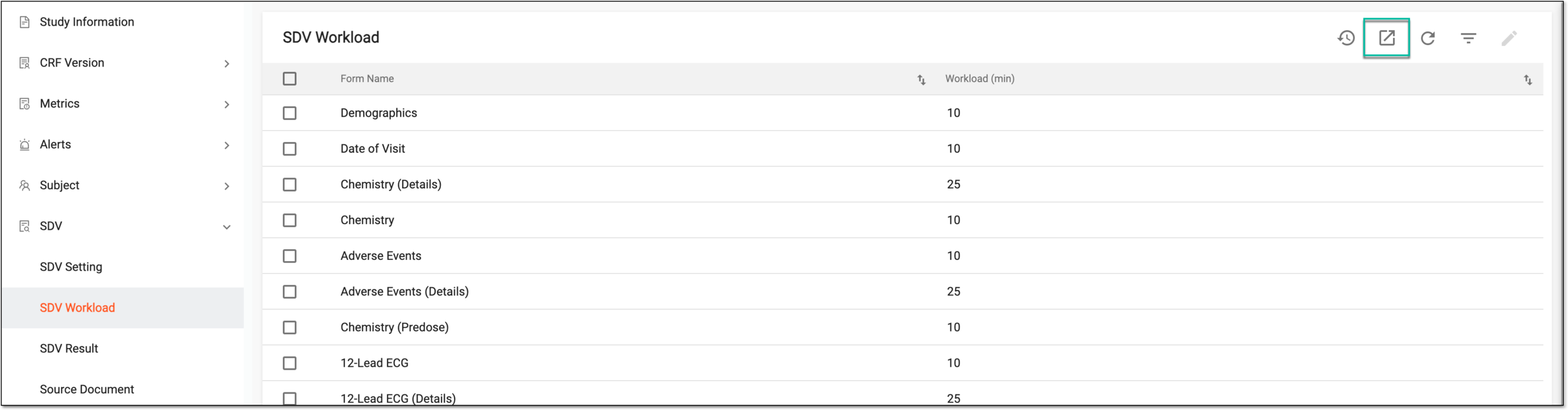 Figure 1. Exporting SDV workload
-
Once selected, the widget appears displaying your download progress. Select the widget to open the My Downloads dialog.
 Figure 2. Downloads widget
-
In the My Downloads dialog that opens, you can find the following tabs:
-
Preparing: under this tab, you can find all the files whose export is in progress, and they are not yet ready for download.
-
Download is Ready: under this tab, you can find all the files whose export is complete, and they can be downloaded to your computer.
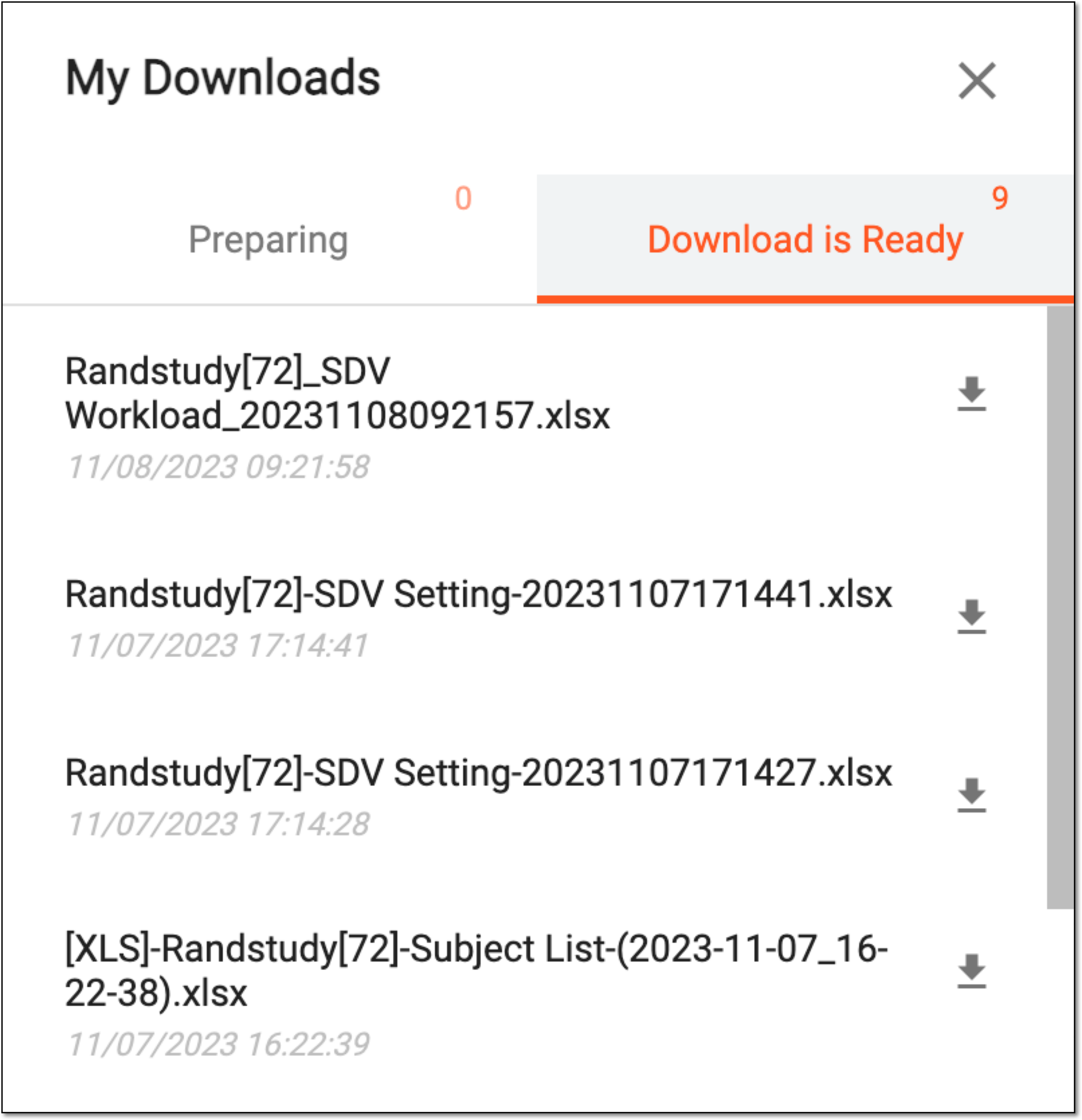 Figure 3. Viewing downloads
-
-
Under the Download is Ready tab, next to the file that you want to download, select
 .
.
Once downloaded and saved, the SDV workload report is available on your computer.