Enable/Reset 2FA method
Two-factor authentication (2FA) is a security method that requires two forms of identification to access the eClinical system. Using 2FA, you enhance your security and protect your account.
In eClinical, you can configure to use an external authentication application or email as your preferred methods of 2FA. The recommended applications are Okta Verify, Microsoft Authenticator, or Google Authenticator.
In this section, you can learn how to enable or reset (disable) the 2FA method. If one of the methods is disabled, you can use the alternative one for authentication.
-
In the header of the eClinical application you work with, select
 .
.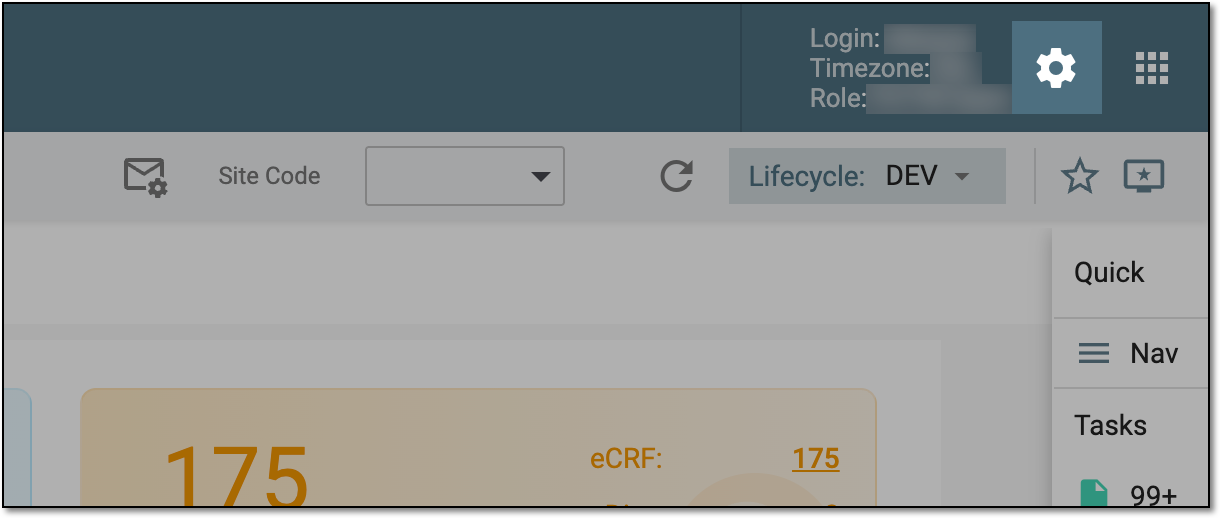 Figure 1. Accessing settings
-
In the Preferences dialog that opens, select 2-Factor Authentication.
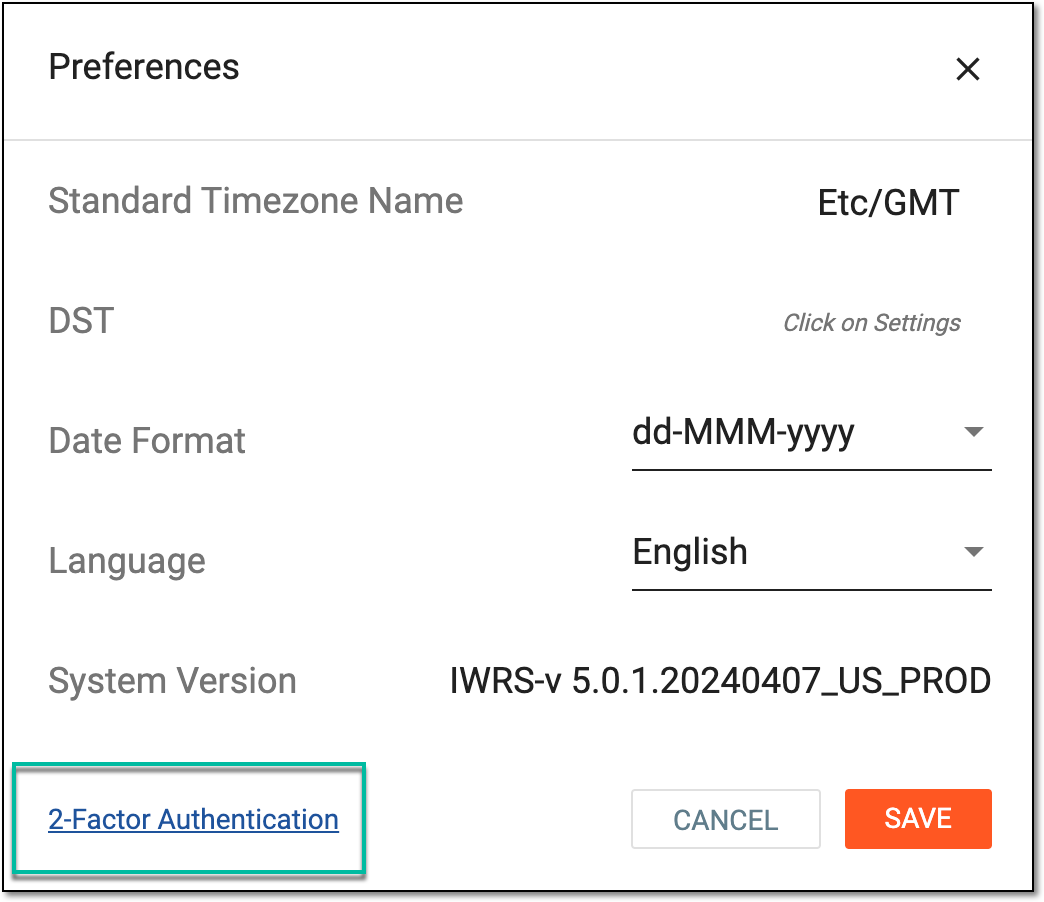 Figure 2. Accessing 2FA configuration page
-
On the 2-Factor Authentication page that opens, do one of the following.
-
Locate the Authentication App method and from the Action(s) column next to it, select Enable
 .
.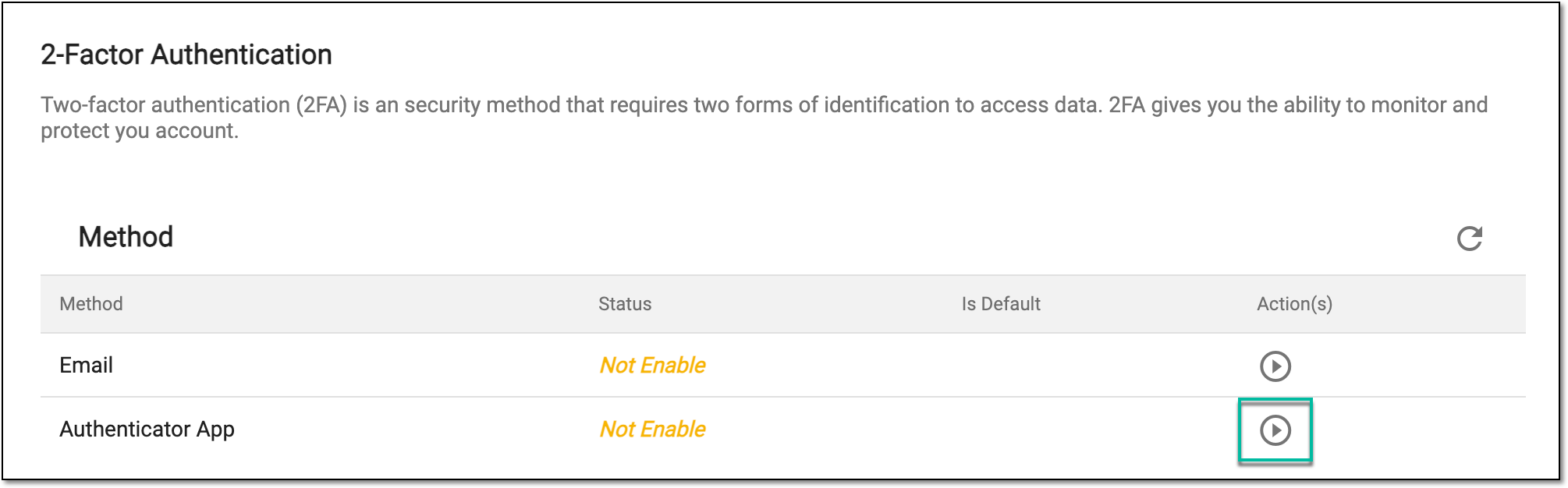 Figure 3. Selecting to enable 2FA via authentication app
-
On the confirmation page that opens, scan the QR code with your preferred authentication app installed on your mobile device to add the authentication. Then enter the app-generated six-digit verification code.
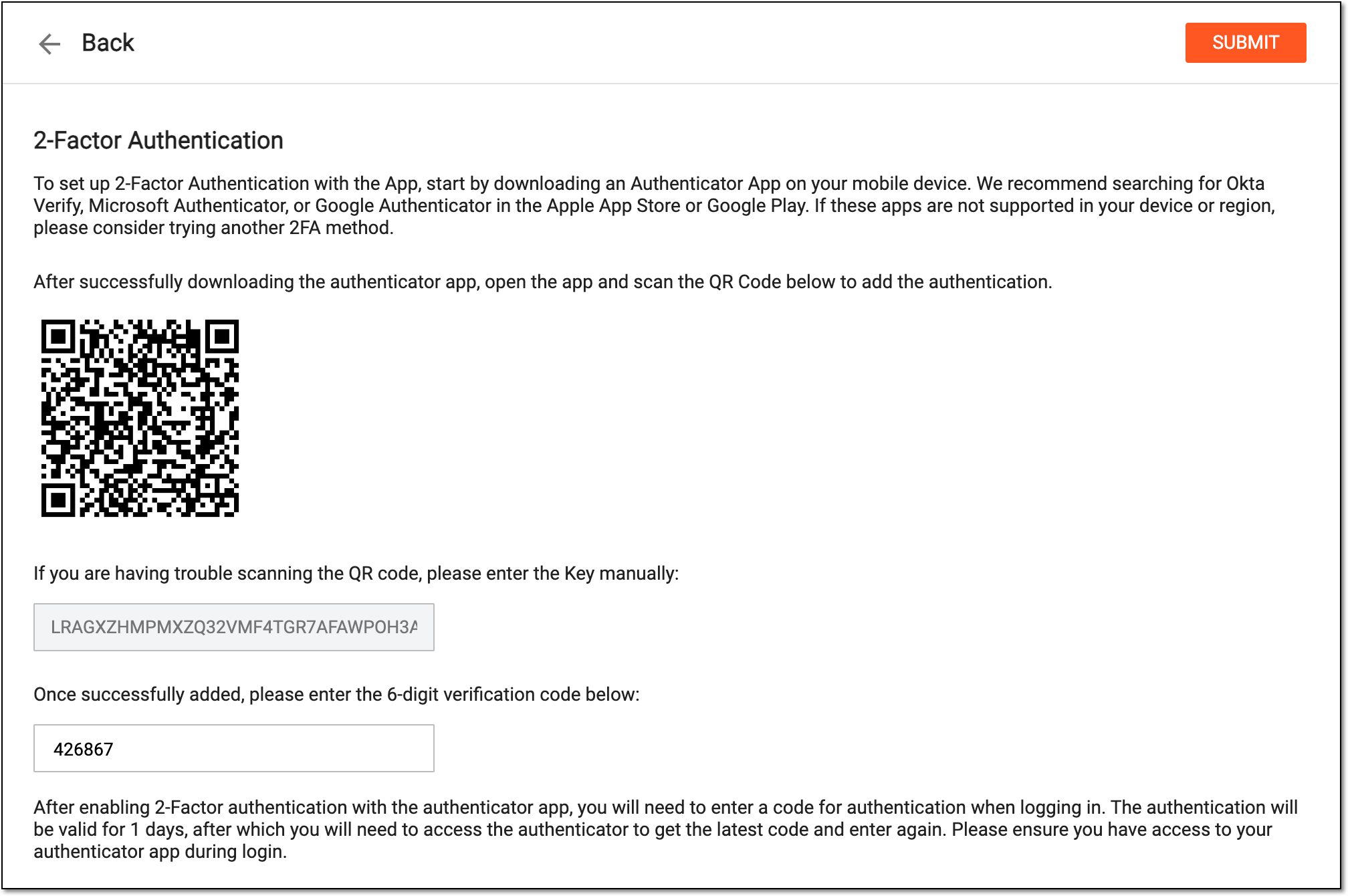 Figure 4. Confirming 2FA setting
Tip
If you have trouble scanning the QR code, the system generates the code that you can enter manually into your app.
-
Select
 to complete the 2FA method setting.
-
Locate the Email method and from the Action(s) column next to it, select Enable
.Figure 5. Selecting to enable 2FA via email
-
Go to your email inbox and copy the verification code you received.
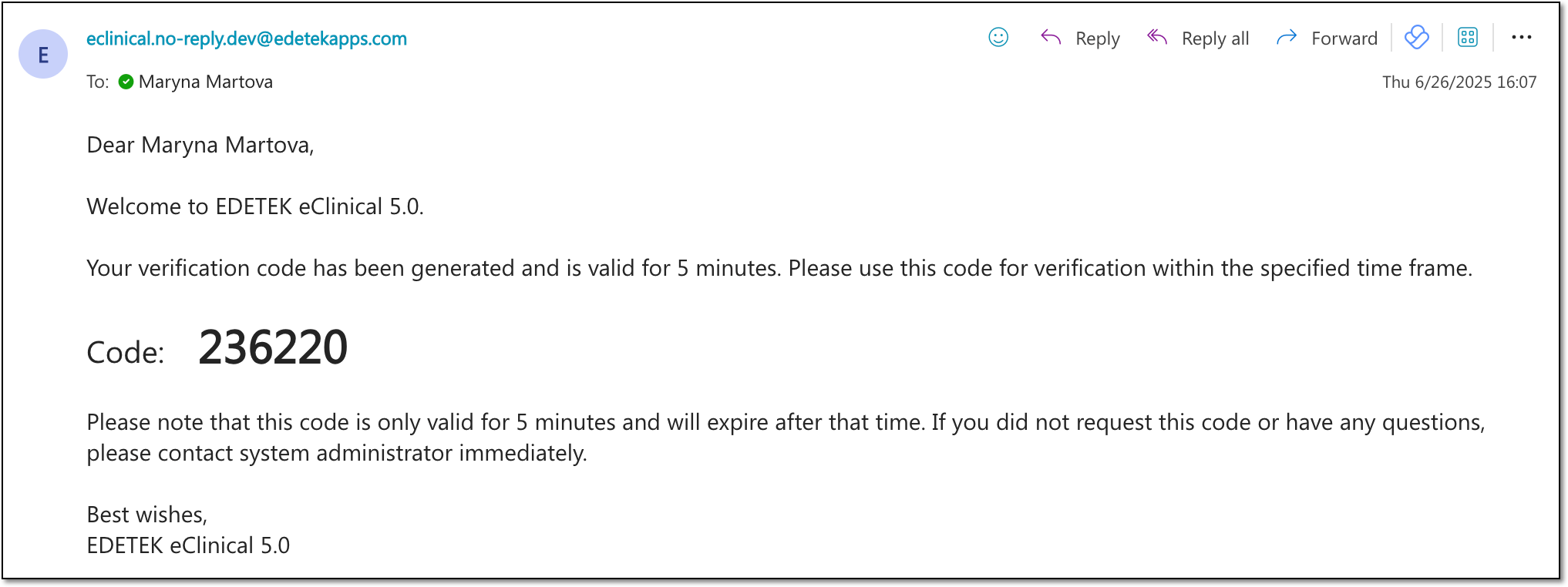 Figure 6. Receiving email with verification code
-
Open the eClinical authentication setup page and enter the six-digit verification code from the email. If needed, select
 to resend the PIN code
email.
to resend the PIN code
email.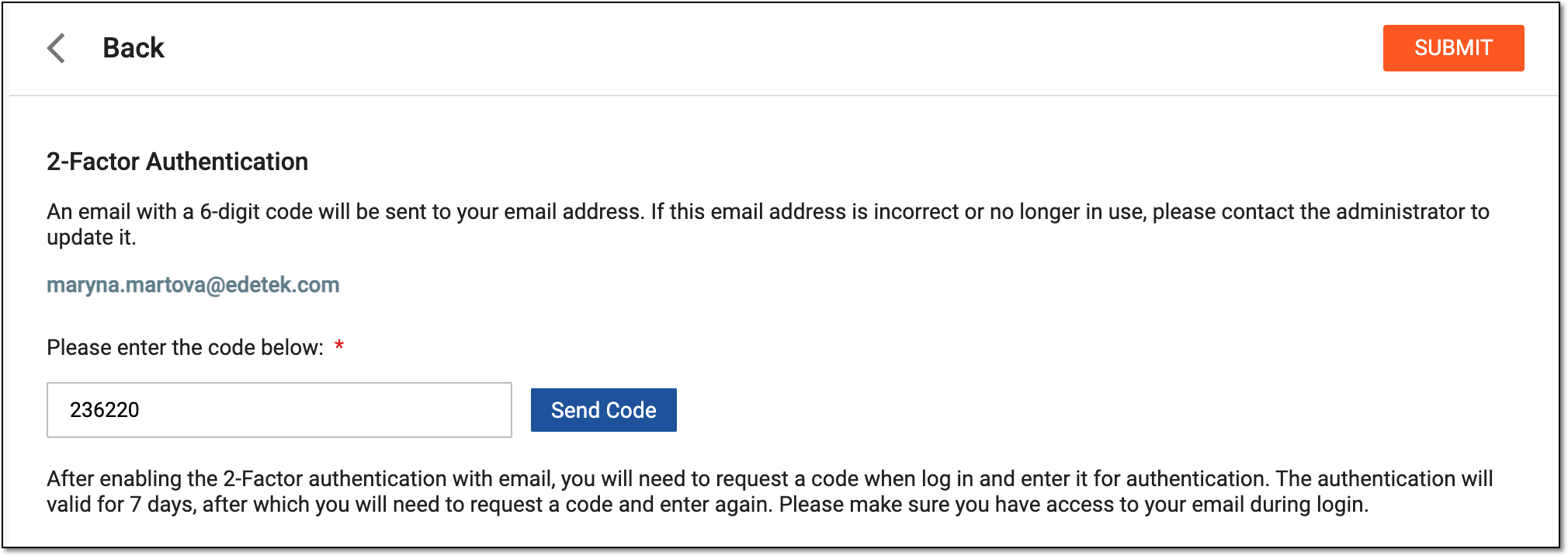 Figure 7. Confirming email authentication with code
-
Select
to complete the 2FA method setting.
-
Locate the Authentication App or Email authentication method depending on which one you want to reset. Then from the Action(s) column next to it, select Reset
 .
.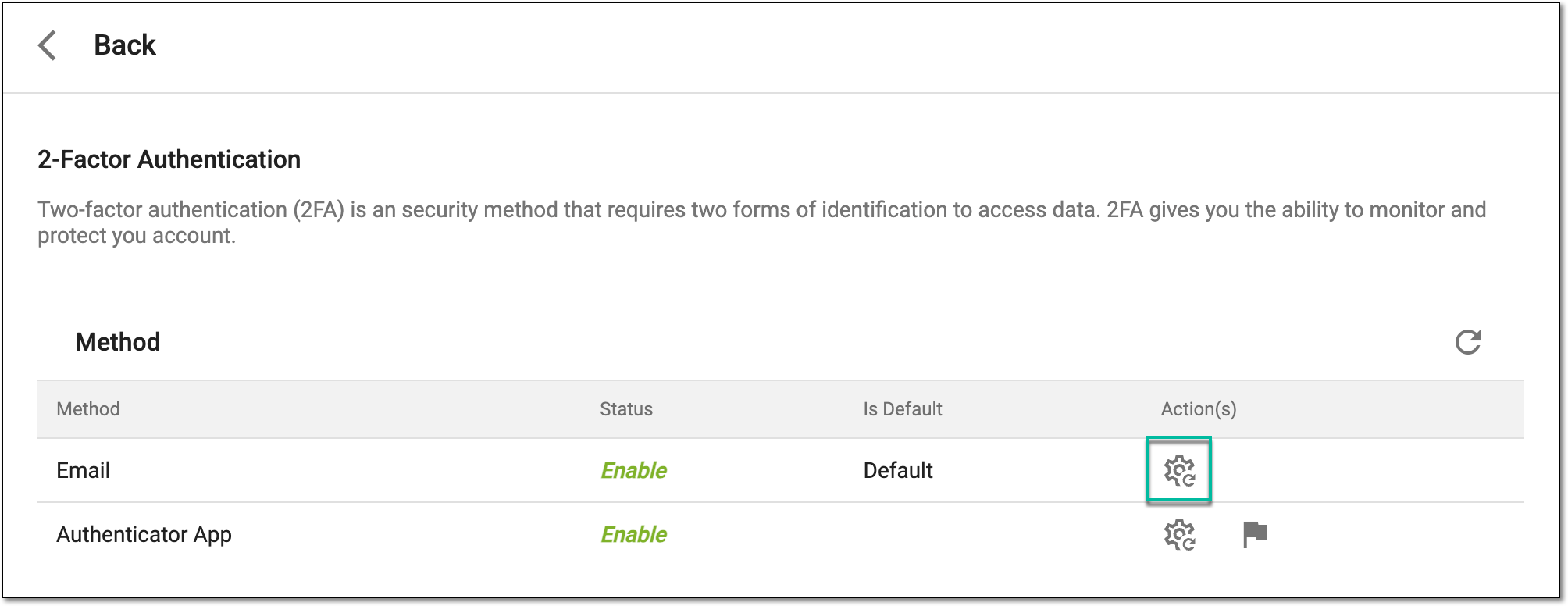 Figure 8. Resetting 2FA via email
-
In the confirmation dialog that opens, select
 to confirm your action.
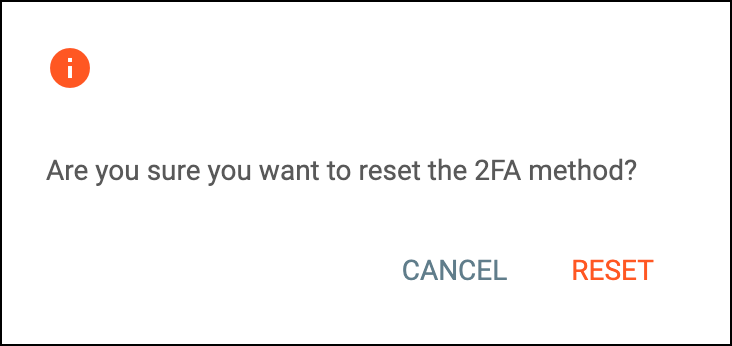 Figure 9. Confirming to reset 2FA via email
-
Once done, the 2FA via the authentication app is enabled or reset as follows:
-
If enabled, you need to enter the verification code from the authentication app or email when logging in. The authentication is valid for one day, after which you need to enter the code again. Thus, ensure you have access to your authenticator app or email during login.
The respective indication can be found in the Method table.
 Figure 10. Enabled authentication via app
-
If reset, you can no longer confirm your login operation via the inactive method. The respective indication can be found in the Method table.
 Figure 11. Disabled authentication via email