Export expiry control details
With the Expiry Control functionality, you can set the expiry buffer for the site and the shipment buffer for the depot. The Expiry Buffer tab is used to prevent the site from dispensing expired drugs to the subjects, and the Shipment Buffer tab is used to prevent the depot from supplying almost expired drugs to the site.
You can also export the details of the expiry or shipment buffer configurations as an XLSX file and use it offline, for instance, to share with those parties who are involved in dispensation or logistics although have no access to the IWRS system.
-
In the IWRS application header, select the TREATMENT DESIGN tab.
-
From the left pane, select the Supply Setting subtab.
-
On the page that opens, in the contents panel, select the Expiry Control tab.
-
Under the Expiry Control tab, select Expiry Buffer or Shipment Buffer to display the data you want to export. Then from the workspace toolbar, select Export
 .
.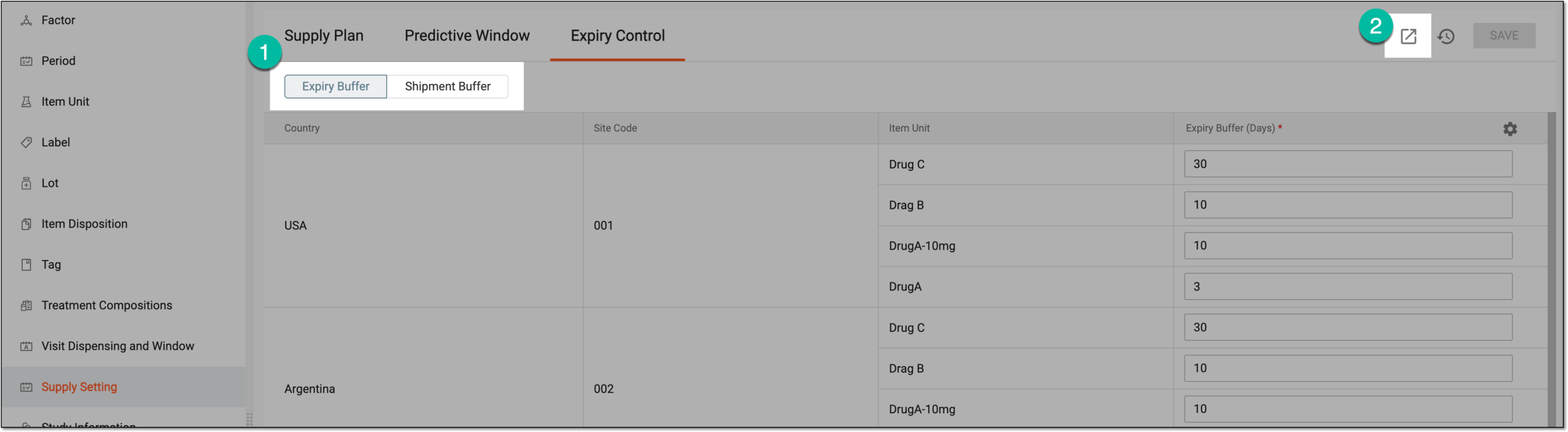 Figure 1. Exporting expiry control details
-
Once selected, the widget appears displaying your download progress. Select the widget to open the My Downloads dialog.
 Figure 2. Downloads widget
-
In the My Downloads dialog that opens, you can find the following tabs:
-
Preparing: under this tab, you can find all the files whose export is in progress, and they are not yet ready for download.
-
Download is Ready: under this tab, you can find all the files whose export is complete, and they can be downloaded to your computer.
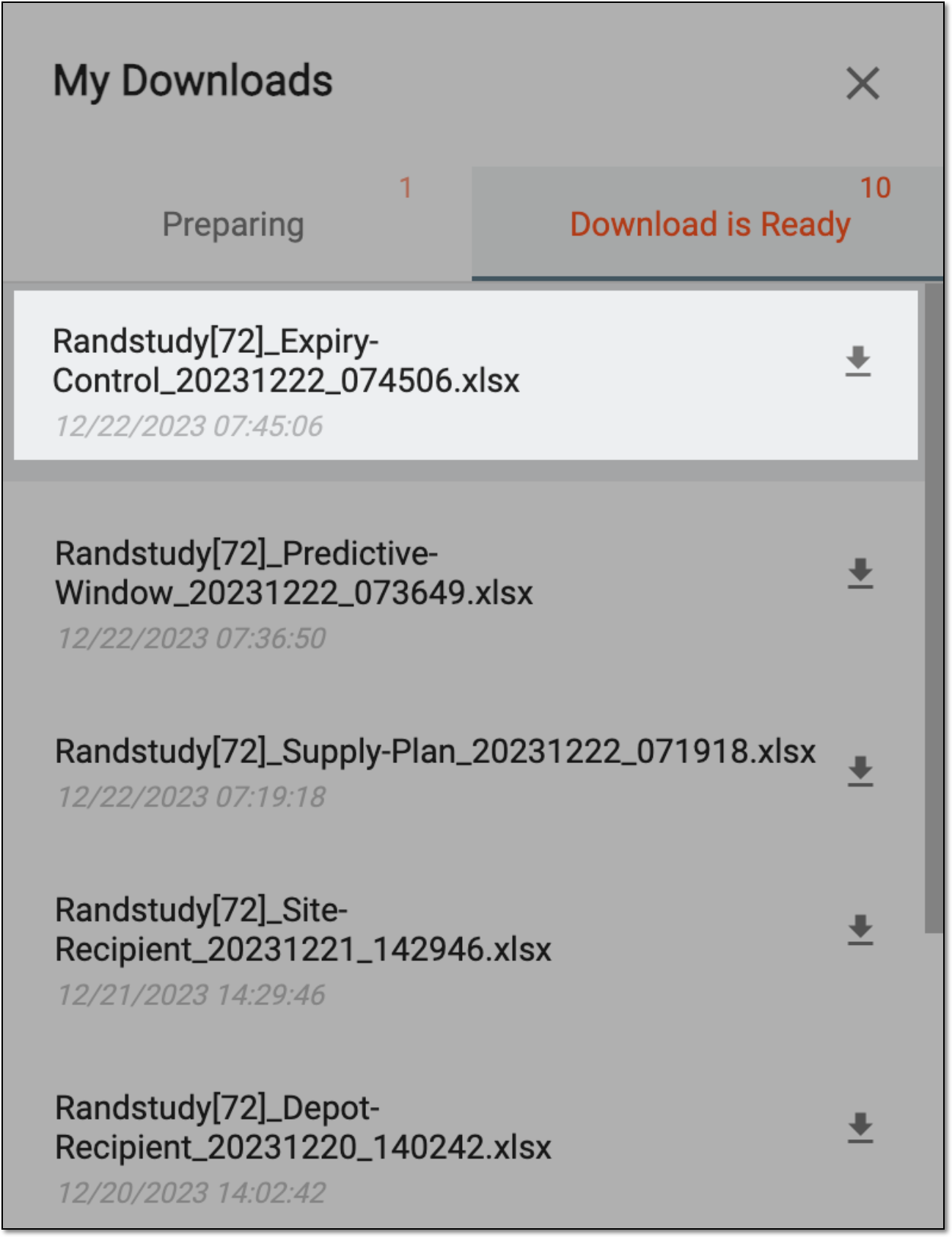 Figure 3. Viewing downloads
-
-
Under the Download is Ready tab, next to the file that you want to download, select
 .
.
Once downloaded and saved, the expiry control details for your study are available as an XLSX file on your computer.