Edit artifact
Artifacts are records, documents, or files containing any information that is captured during a clinical trial and that meet the purpose or definition described in the DIA RM. In some cases, the artifact is a single document, dataset, or piece of information, but in other cases, it can be represented by multiple document types or data types. These artifacts are stored in the respective folders of your study in Essential Documents.
In eTMF, you can manually update the status of your artifacts to reflect their current processing condition. To make the status update accountable, you have to provide the reason for every such change.
-
In the eTMF application header, select the TMF tab.
-
On the page that opens, in the left pane, select the Study List subtab.
-
In the Study List table, select the needed study name.
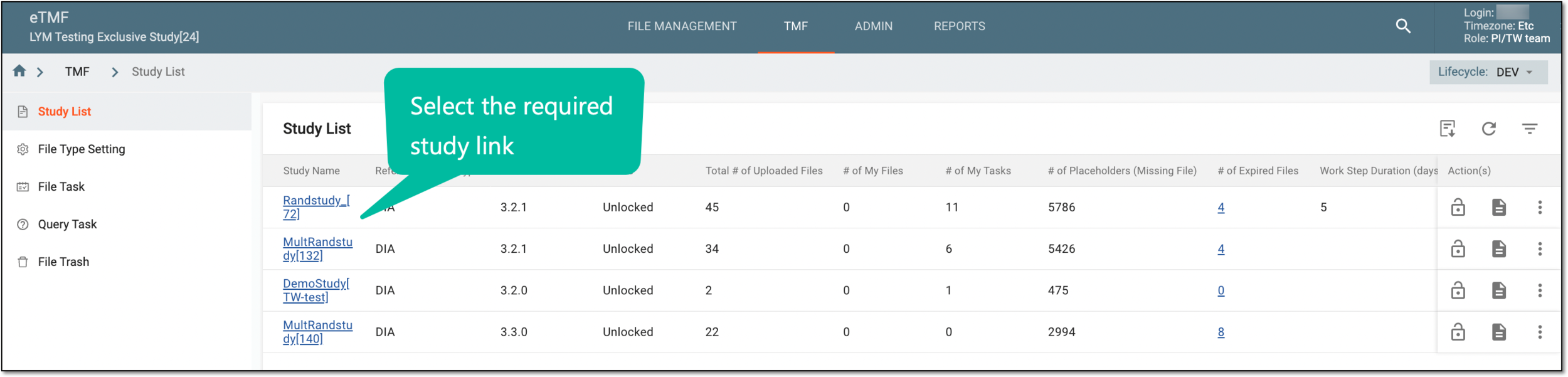 Figure 1. Selecting study
-
On the page that opens, select the Study Tracking pane option.
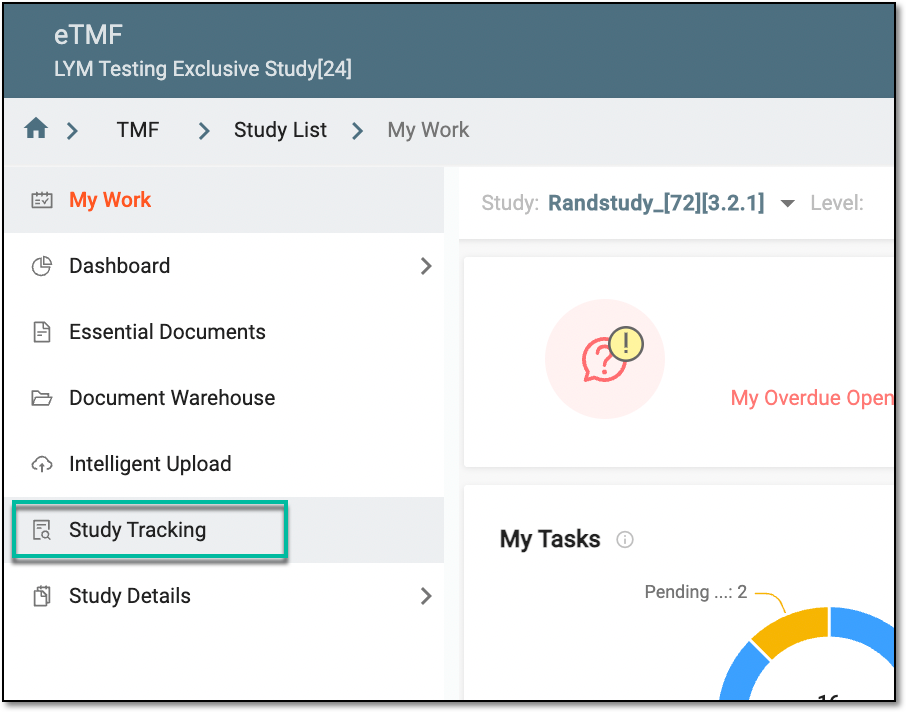 Figure 2. Accessing study tracking page
-
On the page that opens, in the table, select the Artifact tab and locate the artifact that you want to edit. Then from the Action(s) column, select Edit
 .
.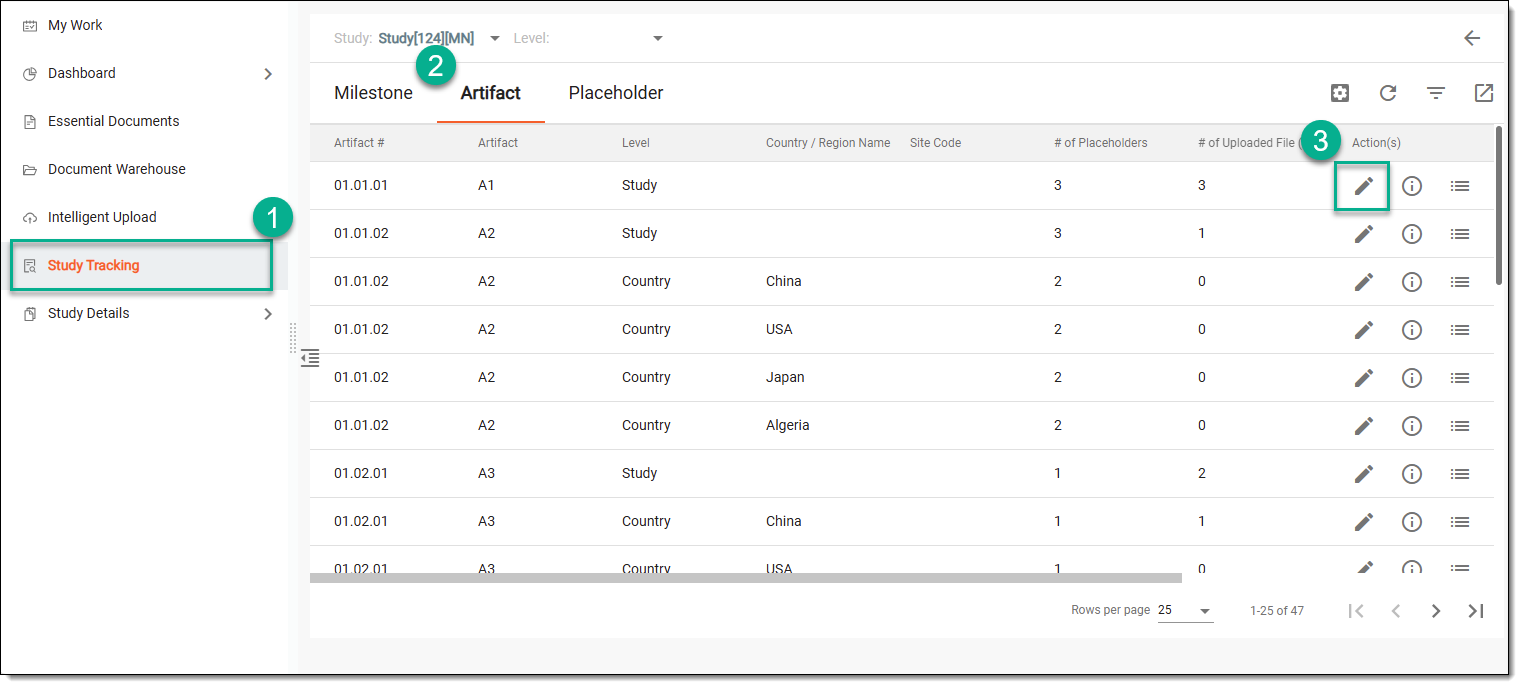 Figure 3. Accessing option to edit artifact
-
In the Edit dialog that appears, edit the fields as explained in the following table.
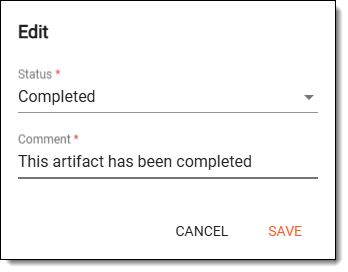 Figure 4. Editing artifact
Element
Details
Status*
From the dropdown menu, modify the status of the artifact to either of the following:
-
Not started: the artifact has not been started yet. This status indicates that the document is in the early stages before it can move to the processing status.
-
Processing: the artifact is currently being actively worked on. This status indicates that the document is in the midst of creation, review, or any other operational activity that is necessary before it can move to the completion status.
-
Completed: the artifact has been finalized, and all necessary actions or processes associated with it have been completed. It is now considered finished and not intended for further changes unless a review triggers another action.
Comment*
Enter any additional comments to support the status change.
SAVE
Select
 to implement the changes.
CANCEL
Select
 to dismiss the changes without saving.
 -
Upon saving, the artifact is updated.