Review query aging summary
A query refers to the request for clarification on some data items collected in EDC on the CRF during a clinical trial. Usually, query requests are posted by data managers (DM) so that clinical research coordinators (CRC) can resolve errors or inconsistencies discovered during the data review. Most of the time, queries are generated automatically by the system when the entered data falls outside the predefined values but they can also be opened manually by data reviewers.
In CTMS, you can review the comprehensive summary of query aging—for how long the queries remain in their respective statuses—depicted in statistical charts. This report is similar to the query aging report in EDC. The data is pulled from EDC to CTMS to facilitate data management and review processes and eliminate the need to switch between applications.
-
Access the study management page in one of the following ways:
-
In the CTMS application header, select the DASHBOARD tab and then select the study dashboard of your interest.
 Figure 1. Accessing study management from dashboard
-
In the CTMS application header, select the STUDY MANAGEMENT tab. Then from the Study Data List table, select the study name of your interest.
 Figure 2. Accessing study management from study data list
-
-
On the study management page that opens, from the left pane, select Query Report > Query Aging Summary.
-
Under the Summary tab that opens, analyze the statistical charts on manual queries. All queries are grouped in different charts by study and site so you can learn about the most current status of those queries separately.
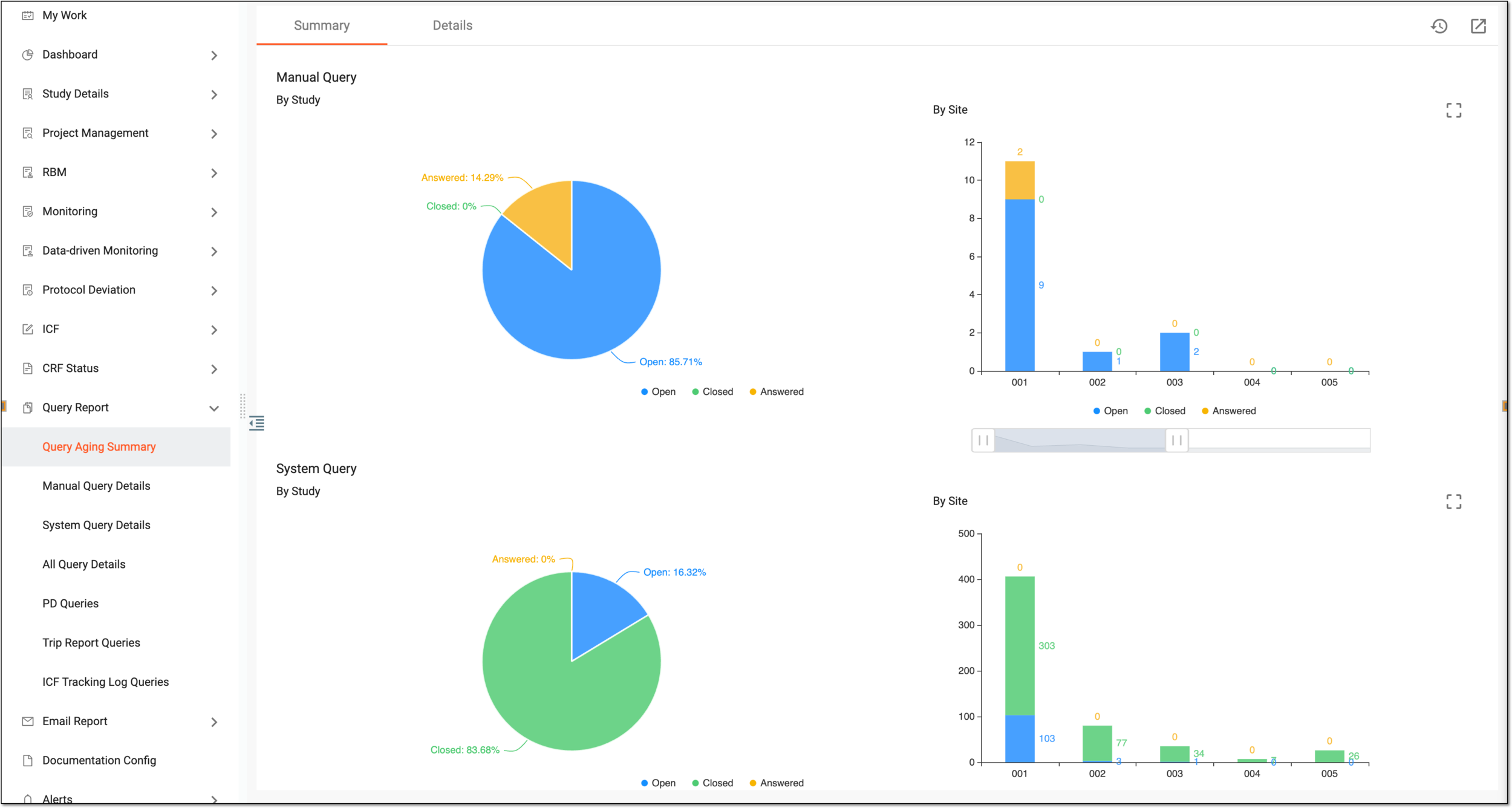 Figure 3. Analyzing manual query charts
-
Switch to the Details tab to analyze the aging summary of both system and manual queries as follows:
-
Interval of days: enter the intervals in days based on which you want to generate the charts for system and manual queries and select
 .
. -
Query Status: select the checkboxes next to the system and manual query statuses that you want to display on the chart: Open, Closed, and Answered.
-
Site Code: select the checkboxes next to the sites for which you want to view the system and manual query statistics.
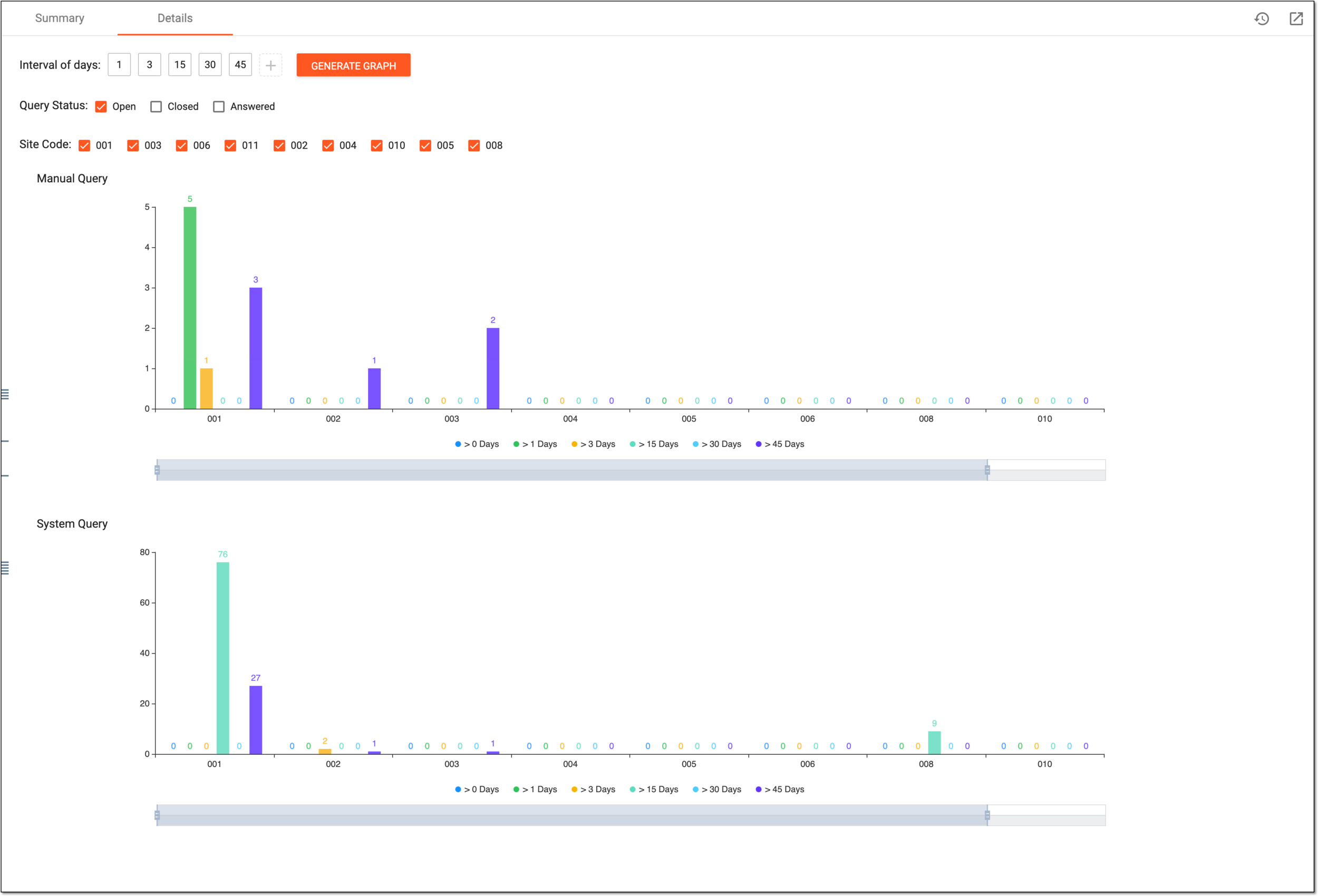 Figure 4. Analyzing aging summary charts
-
You have reviewed the query aging summary details.