Analyze ICSR workflow history
You can view the history of workflow status changes in a separate dialog. This can help when you need to track route updates for a specific case and decide whether to return or forward a route.
-
In the PV application header, select the ICSR tab.
-
From the left pane, select ICSR List.
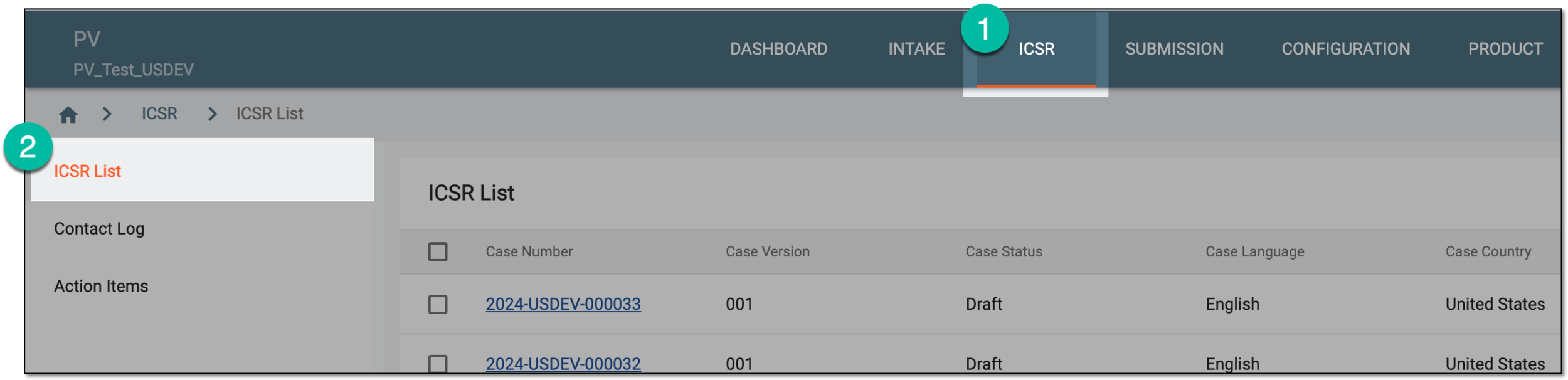 Figure 1. Accessing ICSR list
-
On the ICSR List page that opens, select the Latest Version or All Version tab. Then in the table, locate the ICSR record of your interest and then access its workflow history in one of the following ways:
-
From the Actions column next to your ICSR, select More
 >
Workflow History
 .
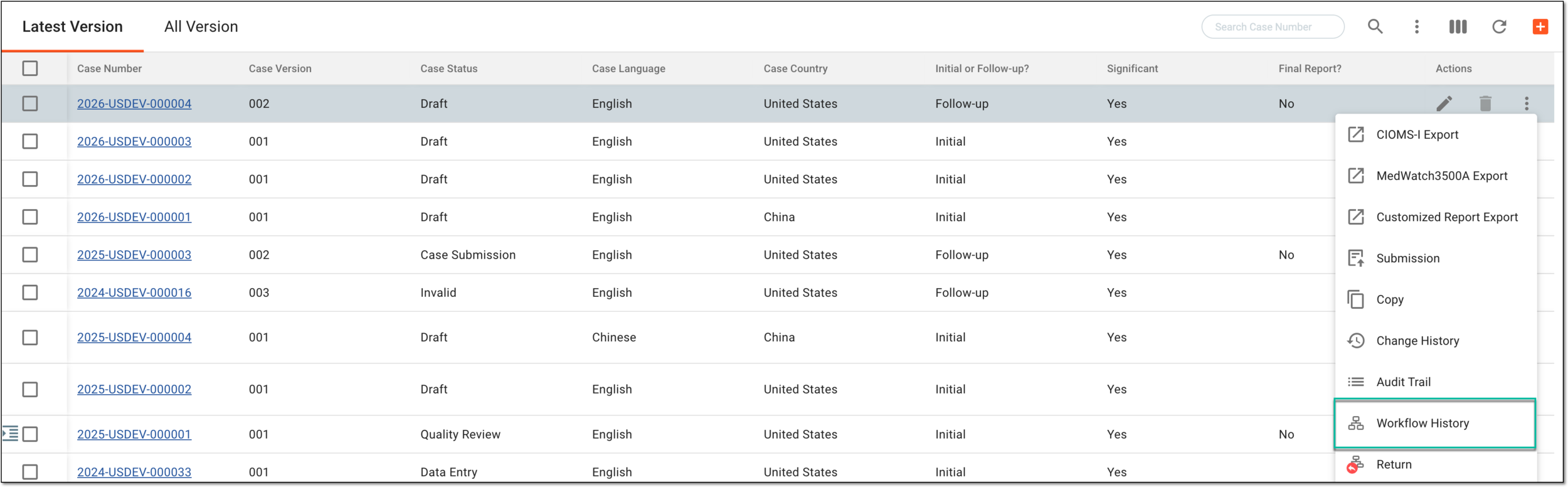 Figure 2. Accessing workflow history from ICSR list
-
Select the case number to open the details page in the new browser tab. Alternatively, from the Actions column next to your ICSR, select Edit
 to open the ICSR details in the same browser tab.
 Figure 3. Accessing ICSR details
Then on the page that opens, from the toolbar, select More
> Workflow
History .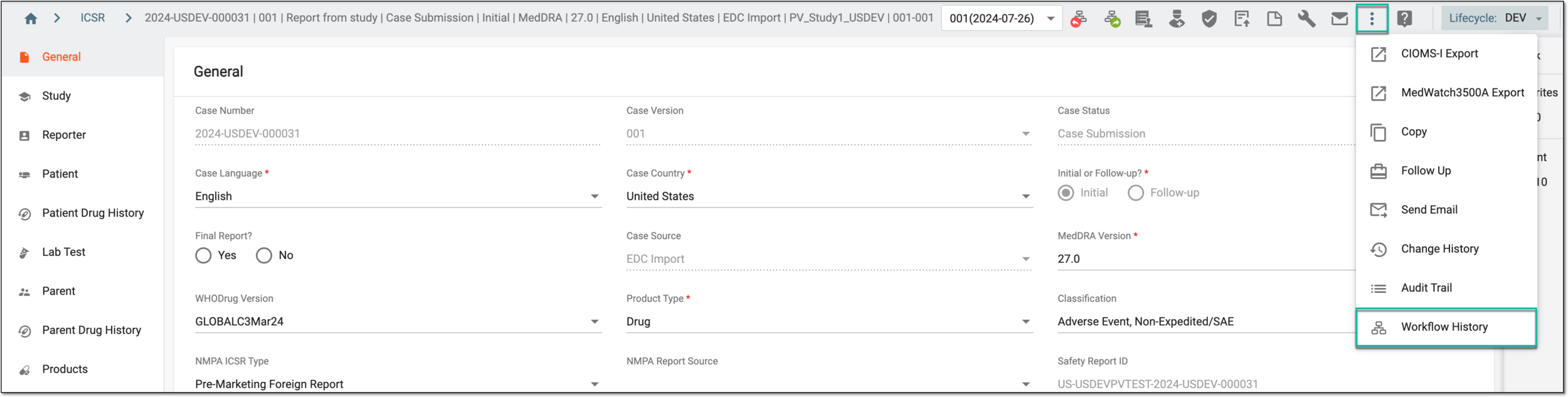 Figure 4. Accessing workflow history from ICSR details page
-
-
In the Workflow History dialog that appears, view the workflow status change for the opened ICSR case.
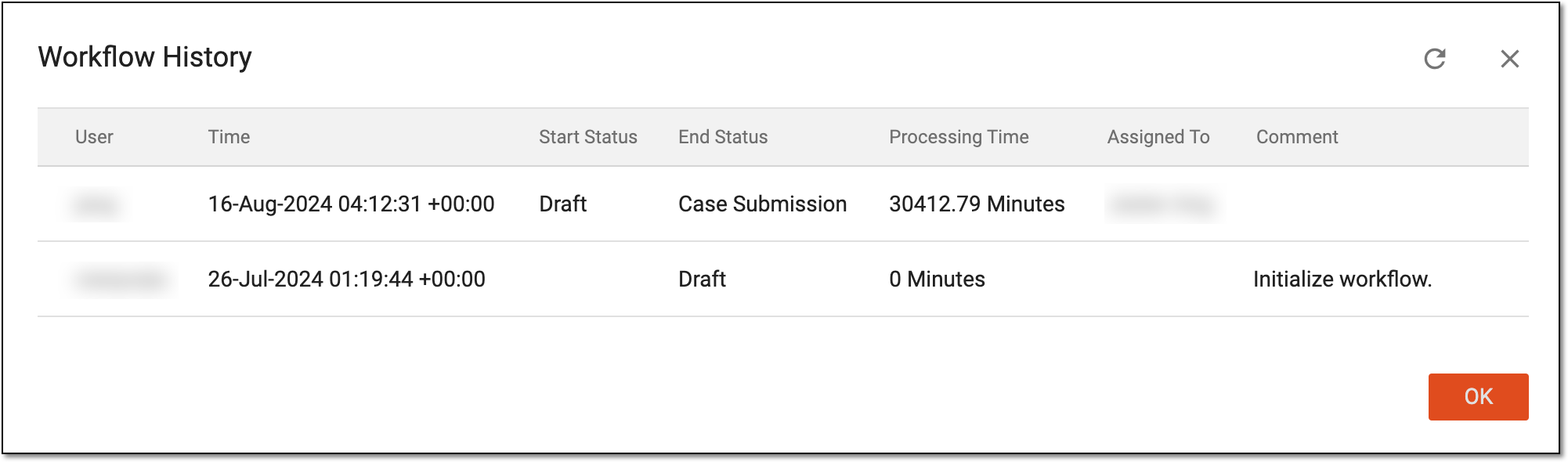 Figure 5. Reviewing workflow history
-
Select
 to close the Workflow History dialog.
You have analyzed the workflow history.