Export operation history report
In CTMS, you can define categories to group related activities under a structured classification, making it easier to manage and track tasks within a study. Categories help organize activities based on their function, such as screening, data collection, regulatory compliance, or monitoring. The operation history related to these categories and activities can be exported in the XLSX file so you can view it offline on your computer.
-
In the CTMS application header, select the REPORT tab.
-
On the page that opens, in the left pane, select Operation History.
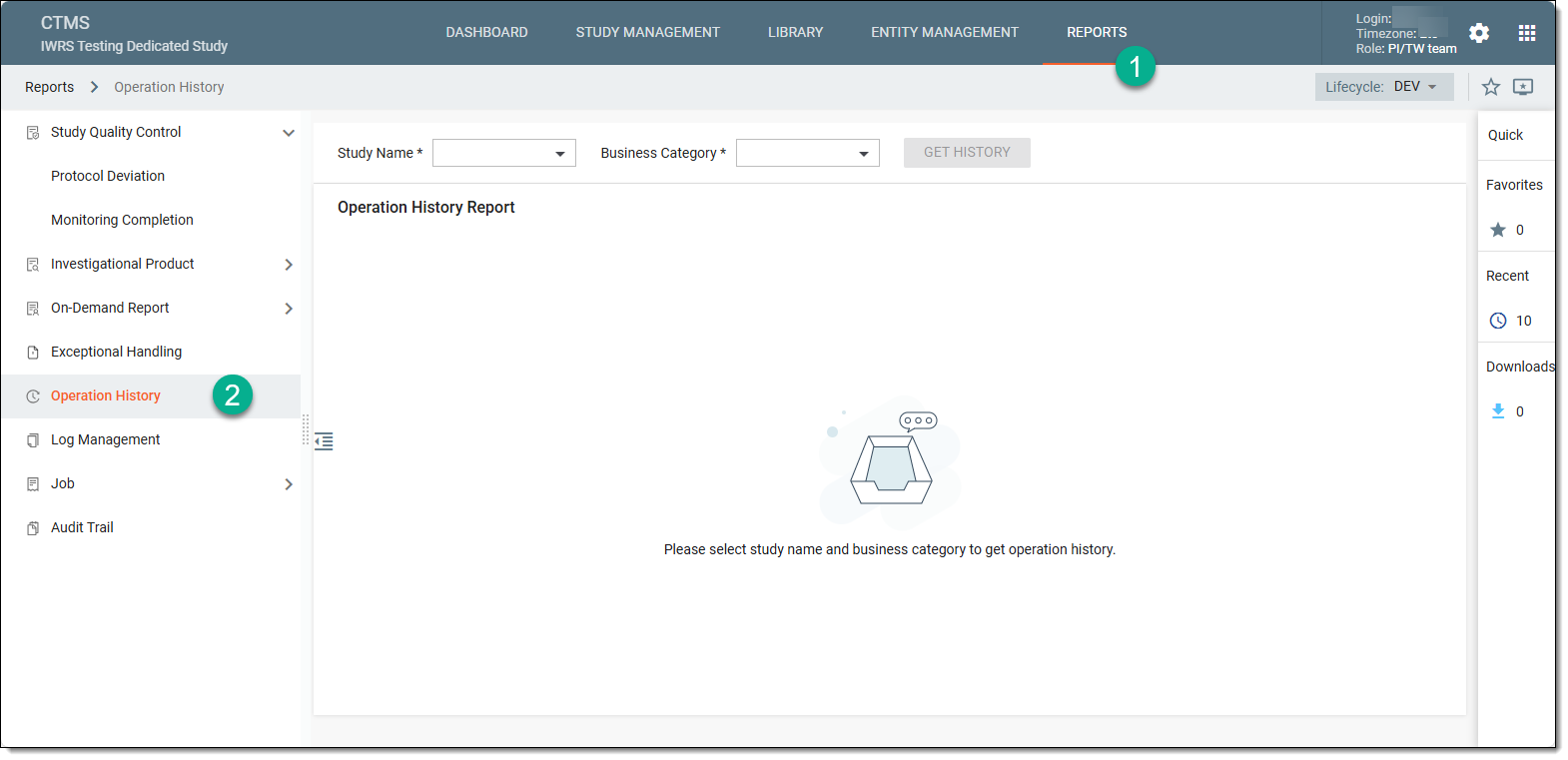 Figure 1. Accessing audit trail
-
In the Operation History Report page that opens, from the respective dropdown menus, select the study and the business category for which you want to export the operation history data, and select
 .
.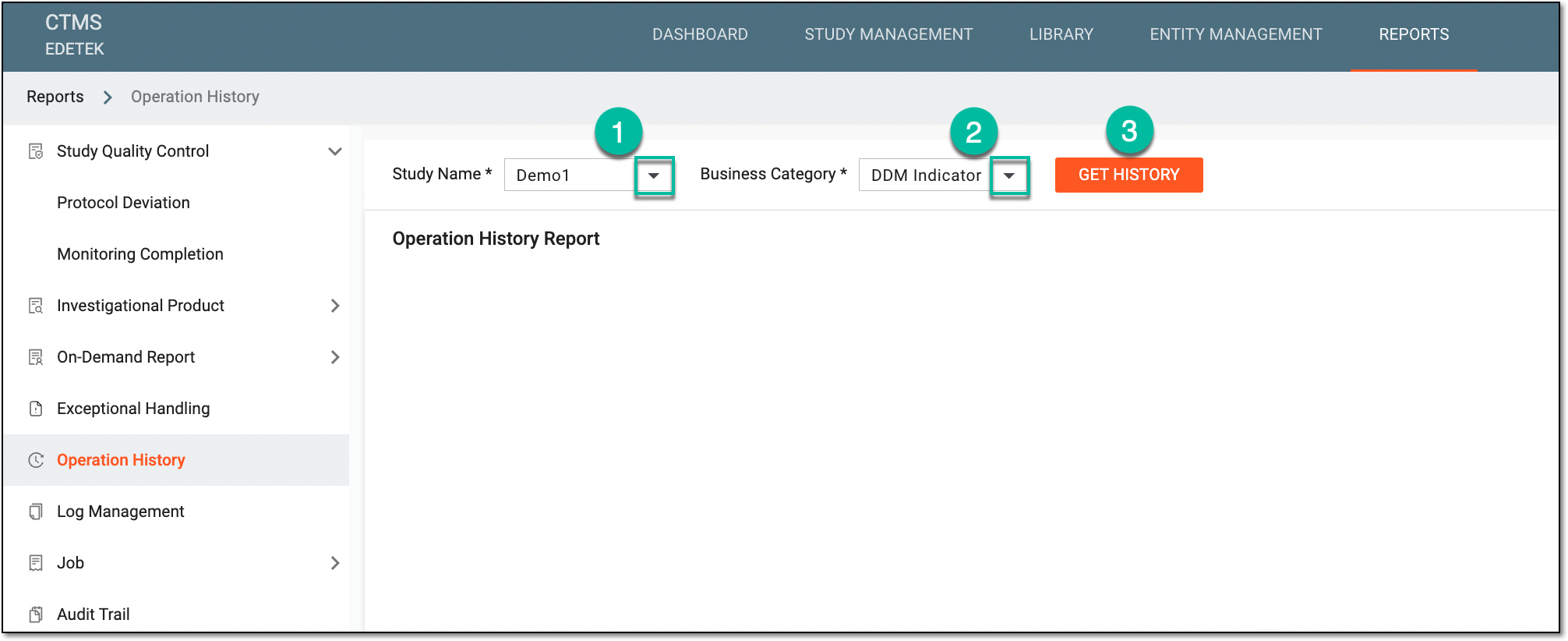 Figure 2. Selecting study and business category
-
In the Operation History Report table that appears, from the workspace toolbar, select Export
 . In the dropdown menu that opens, proceed as follows:
-
Export Current Business Category: select this option to only export the operation history report of the selected business category.
-
Export All Business Categories: select this option to export the operation history report of all the categories listed in the Business Category dropdown menu.
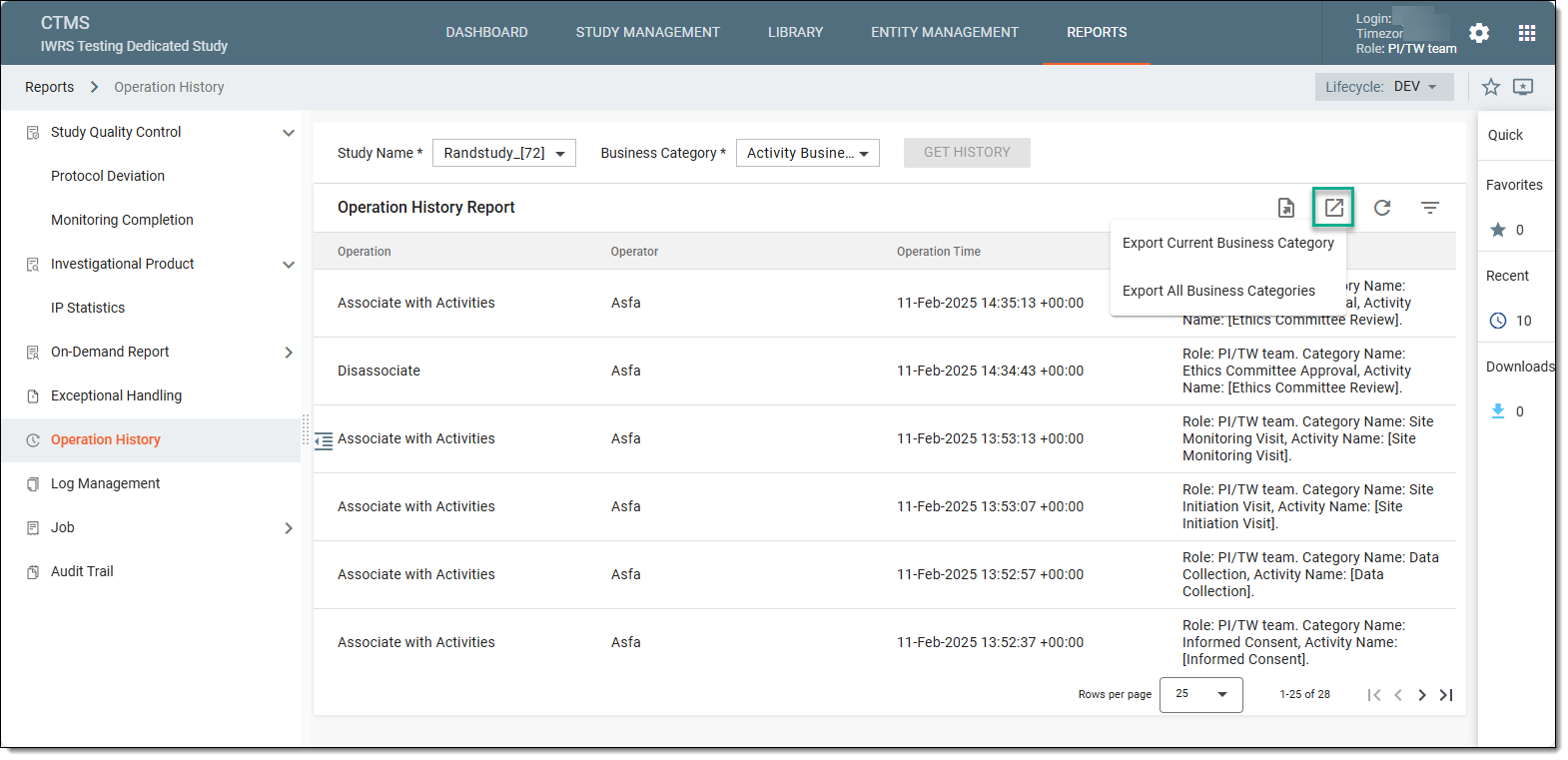 Figure 3. Exporting operation history report
-
Once selected, the operation history report is downloaded to your computer. You can now open it to view it offline.