View CRF version data for subject
In eClinical, CRFs are designed and maintained in the Study Designer (SD) application and then populated to EDC for data entry. Each time there is a need to implement changes to the CRF, a new CRF version is created in SD. Then, in EDC, you can upgrade the CRF version for sites or subjects to keep the system up-to-date.
Keeping track of all the CRF versions throughout a trial is vital for compliance reasons. Thus, in EDC, you can view the comprehensive history of the CRF version changes per each subject at all your study sites in one comprehensive report. Moreover, you can see the backup version of data entered into subject forms per certain version.
-
In the EDC application header, select the STUDY INFO tab.
-
On the page that opens, in the left pane, select CRF Version > Version History.
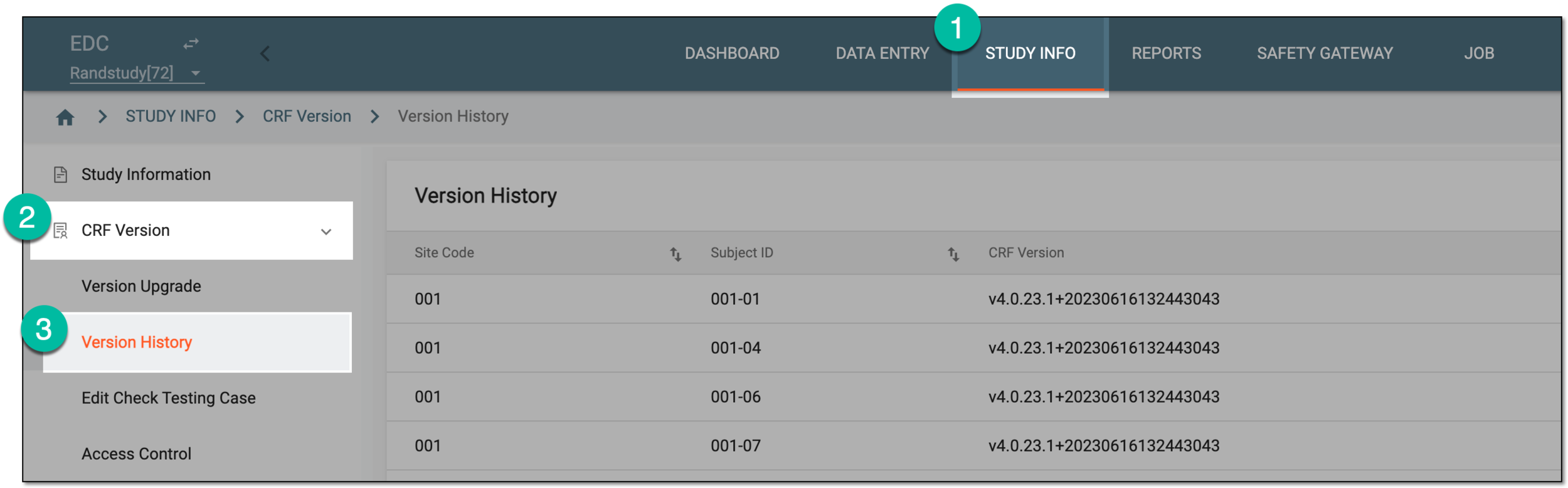 Figure 1. Accessing CRF version history
-
In the Version History table that opens, locate the subject and CRF version for which you want to see the details. Then, in the Action column next to it, select View CRF Version Data
 .
. Figure 2. Selecting to view CRF version data
-
On the page that opens, you can view the list of visits and pertaining forms and study their data.
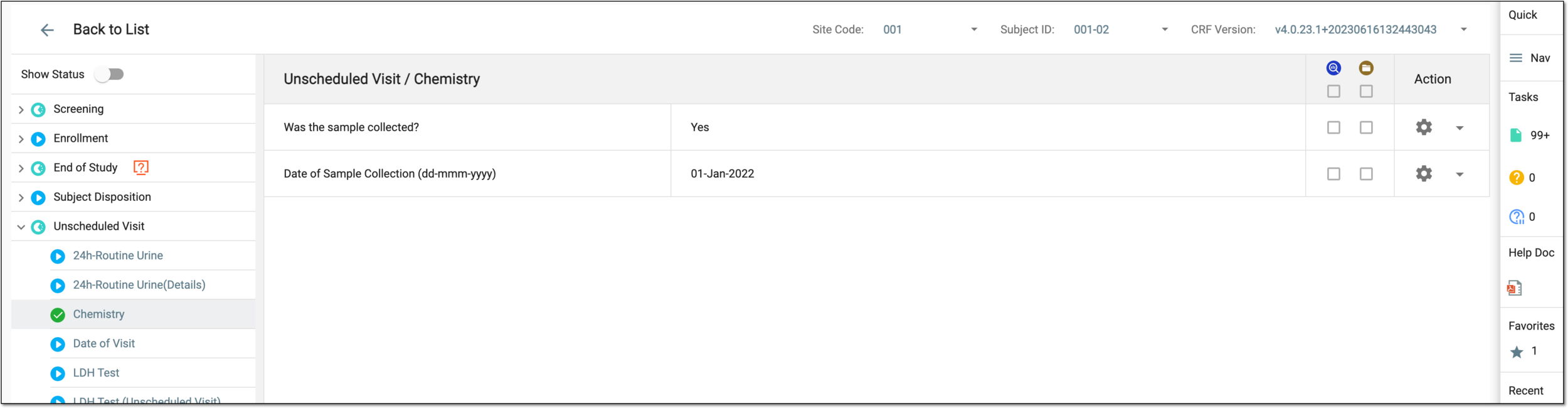 Figure 3. Viewing CRF version data
Tip
You can view another subject's data or select another CRF version for the same subject by selecting a respective site, subject, and CRF version from the menu bar on top.
 Figure 4. Selecting site, subject, and CRF version
Once you have viewed the CRF version data of your interest, select Back to List  to return to the Version History page.